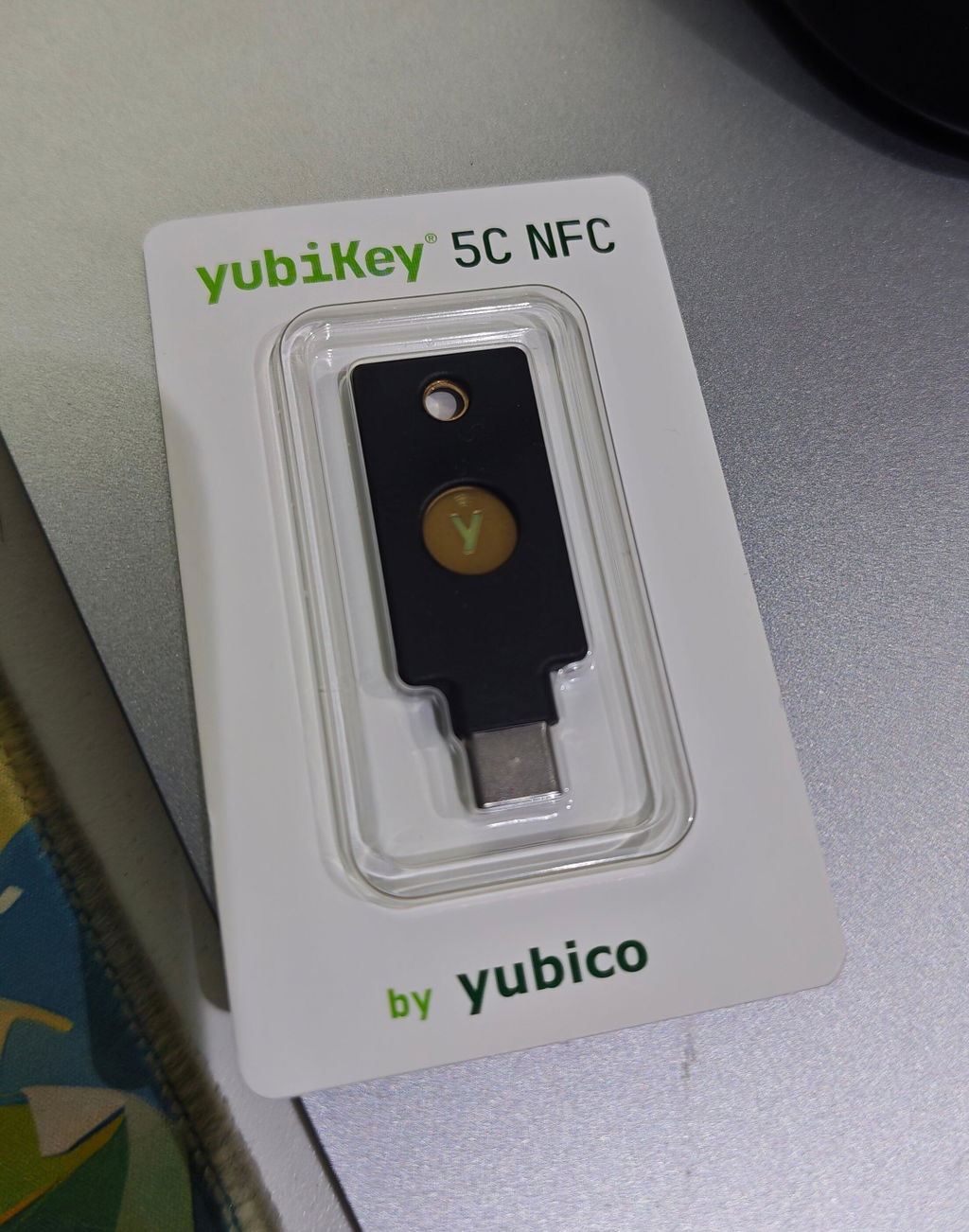
How to Create a New Wallet on ELLIPAL X Card
This guide goes screen by screen through the ELLIPAL X Card. It comes in two parts: first you create the wallet and write down the recovery phrase on the device, then you connect the device to the ELLIPAL app on your phone to check balances and send transfers.
Before you start, what you need
- An unused ELLIPAL X Card and the X Card Starter reader
- A phone with the ELLIPAL app installed and NFC switched on
- Paper and a pen, or the recovery phrase card from the box
- About 10 minutes, somewhere nobody can see your screen and no camera can record it
ELLIPAL devices never go online at any point Titan 2.0 and Titan Mini talk to the app by scanning QR codes only, while X Card uses NFC. There is no cable, no Bluetooth and no Wi-Fi in this process, so the key stays in the device with no path out to the internet.
How to create a new wallet on ELLIPAL X Card
This model needs the X Card Starter reader The card itself has no screen and no buttons, so the wallet is created through the X Card Starter, which has a screen and arrow buttons. For everyday use, you just tap the card on your phone over NFC, with no need to carry the reader.
The X Card recovery phrase can be 12, 18 or 24 words, and this model uses a Card-PIN instead of a password. You enter it every time you connect to the app and every time you sign a transaction.
1. Insert the card and choose Create Wallet
Insert an unused X Card into the X Card Starter, turn it on, then choose Create Wallet from the menu.

2. Choose the number of recovery phrase words
On the Seed Phrase Option screen, use the up and down arrow buttons on the left to choose 12, 18 or 24 words, then press OK. More words take longer to write down but are more secure. If you are not sure, 12 words is enough.

3. Set the Card-PIN
The screen reads Set 6 to 16 Digit Card-PIN. Use the arrow buttons to choose each digit one at a time, then press OK. Enter it again to confirm. Write this code down and keep it apart from the recovery phrase.

4. Wait until it says Wallet Created
The device creates the wallet in the card's chip, then shows the message Wallet Created. Do not remove the card during this time.

5. Choose whether to make a backup card
The screen asks Need A Duplicate Card? If you do not want one now, press NO. If you do, press YES and insert another blank card as the screen tells you. The backup card holds the same wallet and can be used in its place if the main card is lost.

6. Continue to the recovery phrase backup
The screen asks about backing up the recovery phrase. Press NEXT to continue.

7. Write down every word of the recovery phrase
The X Card Starter screen is small, so it shows the recovery phrase one group at a time. Press NEXT to see the next group, and press BACK to go back and check the spelling. Write down every word, in order.

The recovery phrase is the only thing that can recover the wallet Write it on paper or a metal plate only. Do not take a photo, do not type it into a phone or computer, and do not keep it in a notes app or the cloud. Anyone who gets the recovery phrase can reach your assets immediately, without the device. SIAMBC never knows your recovery phrase and cannot recover it for you. Nobody can.
8. Confirm the recovery phrase
On the Confirm Seed Phrase screen, you pick the correct words back to confirm. Use the arrow buttons to scroll to each word and press NEXT, until you have done them all.

9. Remove the card
When the screen says You Can Now Remove The X Card, remove the card from the reader, then carry on in the app on your phone.

10. Open the app and tap Cold Wallet
In the ELLIPAL app, tap the Cold Wallet button on the home screen.

11. Choose X Card
On the Connect to Cold Wallet screen, choose X Card, not Titan 2.0 / Mini.

12. Tap Connect X Card
On the Prepare your X Card screen, tap Connect X Card to start connecting.

13. Enter the Card-PIN
Enter the Card-PIN you set when creating the wallet, then tap Submit

14. Tap the card on the phone's NFC area
Hold the X Card flat against the back of the phone over the NFC area and keep it still until the app reads it. The NFC chip sits in a different place on each phone model, so if it will not read, slowly slide the card around the back of the phone.

15. Connected
The app shows the wallet name with the networks you can use, such as BTC ETH and SOL, along with the address for each network. That completes setup.

What to do after creating the wallet
- Keep the paper with your recovery phrase apart from the device, in a different place, and never let anyone photograph it.
- Write down the device password, or the Card-PIN if you have an X Card, and keep it somewhere else, on a separate sheet from the recovery phrase.
- Receive a small amount once first and check the balance shows correctly in the app before transferring a large amount.
- Every time you send, read the destination address and the amount on the device screen before confirming, rather than trusting only what the phone shows.
Frequently asked questions
Is the wallet in the app different from the one in the device?
They are the same wallet. The device keeps the key offline and signs transactions, while the app shows the balance and builds transactions for the device to sign. Each needs the other, and the app alone cannot send a transfer.
Why write down the recovery phrase when I have already set a Card-PIN?
The Card-PIN only protects the card. If the card is lost, broken or reset, the code does nothing. The recovery phrase is the only thing that brings the wallet back.
My phone cannot read the card
First check that NFC is switched on in your phone. Then hold the card flat and still, because the NFC chips in the card and the phone have to line up. If it still does not work, slowly slide the card around the back of the phone, a little at a time, until it is found.
What if I forget the Card-PIN?
There is no way to recover the Card-PIN. You must reset the card and recover the wallet with your recovery phrase, so you must always have the recovery phrase to hand first.
Can I make a backup card later?
The screen offers it while you are creating the wallet, which is the easiest moment. If you pressed NO then, you still have the recovery phrase as your backup, and you can recover onto a new device whenever you like.
Will SIAMBC or ELLIPAL ever ask for my recovery phrase?
Neither of them will, under any circumstances, and nobody has any reason to know your recovery phrase. Anyone who asks for it is a scammer, no exceptions, whether they claim to be SIAMBC staff, use the ELLIPAL name, or say it is for a warranty claim, identity verification, a firmware update or account recovery.
Summary
The three things not to get wrong: write every word of the recovery phrase on paper in order before continuing, keep the recovery phrase apart from the device and from the password, and receive a small amount once first before transferring a large amount.
If you get stuck or something does not work, message SIAMBC. We look after usage, warranty and product exchanges in Thailand.
Other ELLIPAL models: Titan 2.0 Titan Mini. See the product at ELLIPAL X Card or browse every ELLIPAL model
Last checked: 29 August 2026. On-screen text may change with new versions of the firmware and the ELLIPAL app.
Bought your device from SIAMBC? Register your warranty
Keep your serial number on file with us so claims are quicker. It takes under a minute.
Register warranty