

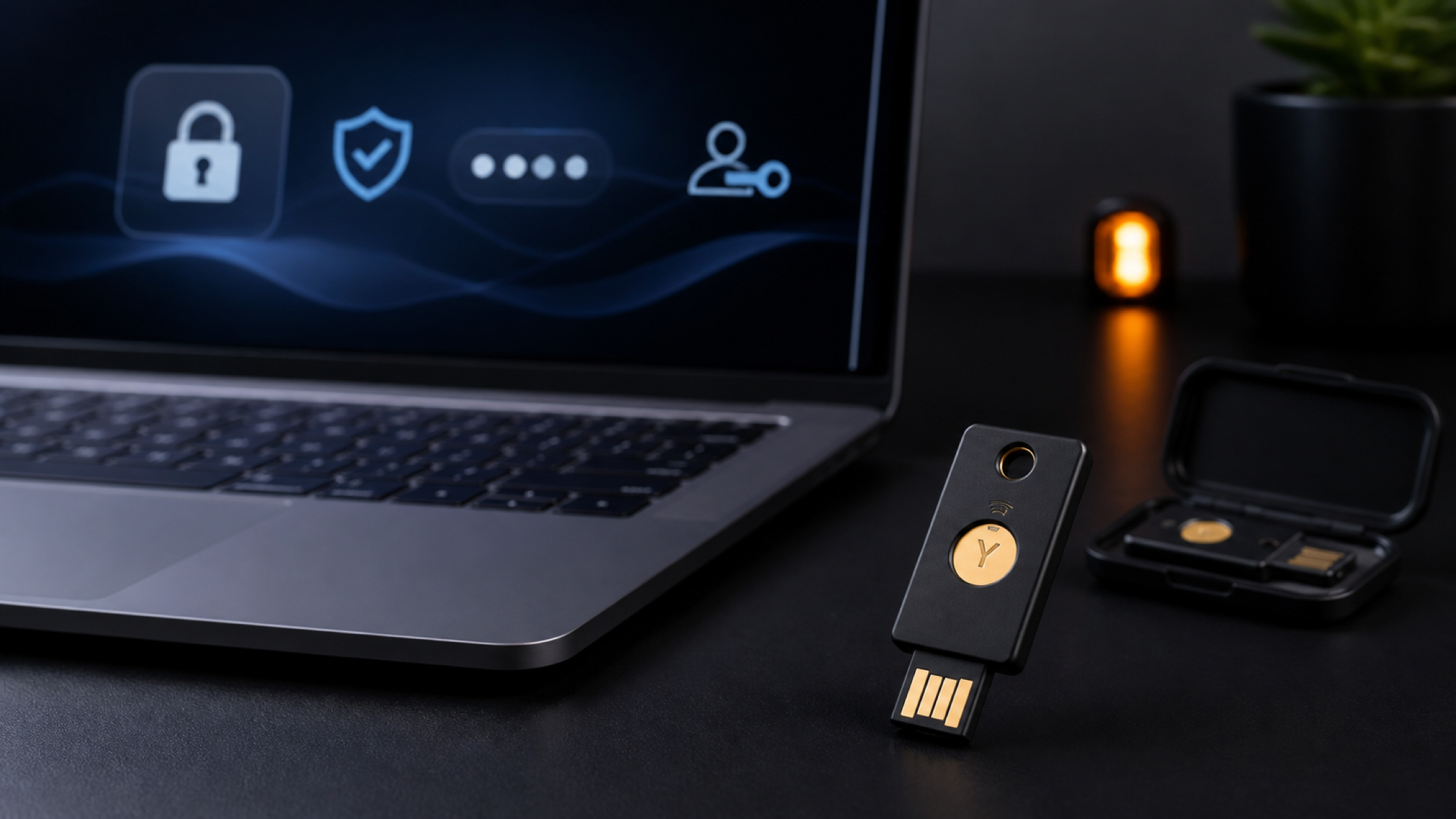
What to know before using or resetting a YubiKey
- Entering the wrong FIDO2 PIN does not immediately erase the key. The FIDO2 function is normally blocked after eight failed attempts.
- After three consecutive failures, remove and reconnect the YubiKey before trying again. Reconnecting does not restore the remaining attempts; a correct PIN does.
- A FIDO2 PIN can contain letters, numbers and symbols. It does not have to be a short numeric code.
- If the PIN is forgotten or FIDO2 becomes blocked, resetting FIDO2 removes its PIN, passkeys and FIDO credentials. That deletion cannot be reversed.
- The online accounts still exist after a reset, but the reset key can no longer use its old credentials. Prepare a spare key, recovery codes or another secure sign-in method first.
A forgotten YubiKey FIDO2 PIN cannot be recovered. The only way to use the key again is to reset its FIDO2 application in Yubico Authenticator, which deletes the PIN, every passkey and any fingerprints stored on that key. Your online accounts are untouched, but you will need a backup key or recovery code to sign in first, then register the key again.
A new YubiKey does not come with a FIDO2 PIN. You set one yourself when you register your first account. The 123456 quoted on many websites is the default for the PIV application, not the PIN used with passkeys.
What is a YubiKey FIDO2 PIN?
The FIDO2 PIN belongs to the physical YubiKey. It confirms that the person holding the key is authorized to use it. It is not the password for Google, Microsoft, GitHub or any other individual service.
If one YubiKey stores passkeys or FIDO2 credentials for several accounts, those credentials use the same PIN set on that key. Registering the same key with another service does not create a new PIN for that website, although the system may request the existing PIN before creating or using a credential.
The website does not receive or store the YubiKey PIN. The PIN is protected while being sent from the client software to the key, and the website receives the authentication result rather than the PIN itself.
Touch and PIN verification serve different purposes
Touching the contact on a standard YubiKey proves that a person is physically present and intends to use the key. Entering the PIN verifies the user. A touch is not a fingerprint scan unless the device is a YubiKey Bio model with a fingerprint sensor.
Does a YubiKey have a default PIN?
It depends on which part of the key you mean.
- FIDO2 (used for passkeys and for signing in to Google, Microsoft and Facebook): no default. A new key has no PIN. You are asked to set one when you register your first account, or you can set it beforehand on the Passkeys screen in Yubico Authenticator.
- PIV (the smart card function used by company systems): ships with PIN 123456 and PUK 12345678. Change both before real use. Resetting PIV returns them to these values.
If you use a YubiKey to sign in to online accounts, you only use FIDO2 and can ignore the PIV PIN.
What happens after three or eight incorrect PIN attempts?
A YubiKey normally allows eight attempts for its FIDO2 PIN. To slow down repeated guessing, it introduces a pause after three consecutive failures. At that point, the key must be removed and reconnected before another attempt can be made.
Reconnecting does not reset the retry counter. If five attempts remained before the key was removed, reconnecting it does not restore the counter to eight. Successfully entering the correct PIN restores the normal allowance.
After the full number of failures, FIDO2 becomes blocked and its existing credentials can no longer be used. The key does not automatically erase itself. However, restoring the FIDO2 function requires a reset, and that reset is what removes the old FIDO credentials.
If you are unsure of the PIN, stop guessing
- Check the keyboard language, Caps Lock state and characters before trying again.
- Use a securely stored PIN record instead of testing variations.
- Confirm that a spare YubiKey or recovery code works for every important account.
- Do not assume that unplugging the key has restored all attempts.
Can a YubiKey PIN contain letters and numbers?
Yes. A FIDO2 PIN is not limited to four or six numbers. It can contain letters, numbers and symbols. The minimum requirement depends on the firmware and any PIN-complexity policy in force, while the maximum is 63 bytes.
The distinction between bytes and characters matters. An English character commonly uses one byte, while Thai characters and some other symbols can use more. A PIN containing non-Latin characters therefore might reach the limit before it contains 63 visible characters. Follow the limit shown by the app and the firmware in use.
Choosing a practical PIN
- Use something memorable enough that you will not have to guess, but avoid sequences, birthdays, phone numbers and information known to people around you.
- Do not reuse a phone unlock code, computer PIN, bank-card PIN or account password.
- If a written record is necessary, store it separately from the YubiKey in a place that other people cannot access. Never attach it to the key.
- Organizations should define a secure process for creating, issuing and recovering PINs without requiring administrators to know an employee’s personal PIN.
Reusing a phone PIN may feel convenient, but a person who obtains both the phone and the YubiKey would then have more of the information needed to use them. A separate PIN is safer when paired with a reliable recovery plan.
What should you do if the PIN is forgotten?
If the current PIN is known, it can be changed through Yubico Authenticator or a supported operating-system tool without deleting passkeys. If the current PIN is unknown, there is no email reset link or security question that can reveal it.
Once you are certain the PIN cannot be recovered, the remaining way to make FIDO2 usable again is to reset that function. A reset does not unlock the old credentials; it clears them and prepares the YubiKey for a new setup. You must first enter each account through another method and then register the key again.
Before resetting, answer two questions: Which accounts use this key? and Can every one of those accounts still be reached another way? If either answer is unclear, do not reset yet.
How to reset FIDO2 in Yubico Authenticator, step by step
On a computer or Android
- Plug in the YubiKey, open Yubico Authenticator, tap the menu icon at the top left and choose Home.
- Under DEVICE, choose Factory reset. If the app window is too narrow to show it, tap the menu icon at the top right first.
- Select FIDO2 and click Reset.
- Unplug the YubiKey, plug it back in, and touch the gold contact when the app asks. On a Bio model, touch the fingerprint sensor instead.
- When the status reads FIDO application reset, click Close.
- Set a new PIN on the Passkeys screen, then register the key with each account again and remove the old key entry from each account's security settings.
On iPhone and iPad
- iPhone can reset FIDO2 in the app, but keys with firmware older than 5.7.4 can only be reset over NFC, not through the cable.
- iPad cannot reset FIDO2 yet. Use a computer or an Android phone instead.
Exceptions to know
- The YubiKey Bio Multi-protocol Edition cannot reset FIDO2 on its own, because it shares one PIN with PIV. A reset clears both.
- A reset cannot be undone once confirmed. Work through the checklist below first.
What does Factory reset in Yubico Authenticator remove?
The Home screen in Yubico Authenticator includes Factory reset – Restore YubiKey defaults. The wording can sound as if every function will be erased at once, but current versions of the app offer resets by application where supported, such as FIDO2, OATH or PIV.

On most YubiKey models, resetting one application does not erase data in every other application. A FIDO2 reset generally does not remove OATH-TOTP accounts or PIV certificates. Model-specific exceptions exist. For example, the YubiKey Bio Series Multi-protocol Edition can share a PIN between FIDO2 and PIV, so the on-screen warning must always be read before confirmation.
Data removed by a FIDO2 reset
- the FIDO2 PIN;
- passkeys stored on the YubiKey;
- other FIDO2 credentials, including credentials that are not listed on the Passkeys screen;
- fingerprints enrolled on supported Bio models; and
- Enterprise Attestation configuration on supported models when it has been enabled.
Previous FIDO U2F and FIDO2 registrations will no longer work with that key. The absence of an account name from the Passkeys screen does not prove that a reset is harmless, because not every FIDO credential is displayed there.
What is not deleted from the internet
Your Google, Microsoft, GitHub or other online accounts are not deleted. The old YubiKey entry may even remain visible in the account’s security settings. The problem is that a reset key can no longer produce the original cryptographic response, so the stale registration must be removed from the account and the key enrolled again.
| Item | After a FIDO2 reset |
|---|---|
| FIDO2 PIN | Removed; a new PIN must be created |
| Passkeys on the YubiKey | Removed and not recoverable from the key |
| Existing FIDO2/U2F credentials | No longer authenticate the key to previously registered accounts |
| Online accounts | Still exist, but another sign-in method is required |
| OATH, PIV and other applications | Normally remain when only FIDO2 is reset; check the model and the confirmation message |
How to remove only one passkey
Do not use Factory reset to stop using one account’s passkey. Open the Passkeys screen in Yubico Authenticator and delete the individual discoverable credential instead.
Then open the security settings for that online account and remove the old key or passkey entry there as well. Deleting a credential from the YubiKey does not automatically tell the website to remove its registration.
The Passkeys screen does not list every type of FIDO credential. For a complete audit, review the security settings of each important account rather than relying only on the list shown in Yubico Authenticator.
Checklist before resetting FIDO2
- Stop guessing the PIN so the remaining attempts are not consumed unnecessarily.
- List important accounts, starting with the primary email account, password manager, cloud storage, social media, GitHub and company systems.
- Test the spare YubiKey by actually signing in to each account.
- Check recovery codes and make sure they are readable and stored separately from the primary key.
- Confirm another sign-in route, such as a passkey on another device or a separate administrator account.
- Remove the key from account settings first where possible, so an unusable registration is not left behind.
- Read the final confirmation screen and verify whether FIDO2, OATH or PIV is being reset and whether the model has an exception.
- Re-enrol promptly after the reset, create a new PIN and test the key with every account.
How to avoid being locked out of an account
1. Register at least two keys from the beginning
A spare YubiKey is not made by copying a file from the primary key. Each physical key must be registered separately with the same online account. Use one regularly and keep the other in a secure, separate location.
2. Store recovery codes away from the keys
Recovery codes are useful if both keys become unavailable. Keep them offline or in a trusted protected store. Avoid leaving an unprotected photograph in a cloud-synced photo library.
3. Give each key a clear name in account settings
Names such as “YubiKey 5C NFC – Daily” and “YubiKey 5 NFC – Spare” make it easier to remove the correct registration after a key is lost or reset.
4. Maintain a non-secret account inventory
Record which services have each key registered. The list does not need passwords or recovery secrets; service and key names are enough to make a loss, replacement or reset much easier to manage.
5. Test backup access periodically
A spare key that has never been tested may not be registered everywhere. Sign in with it periodically and confirm that recovery codes and backup administrator accounts still work.
Choose a YubiKey that matches your devices
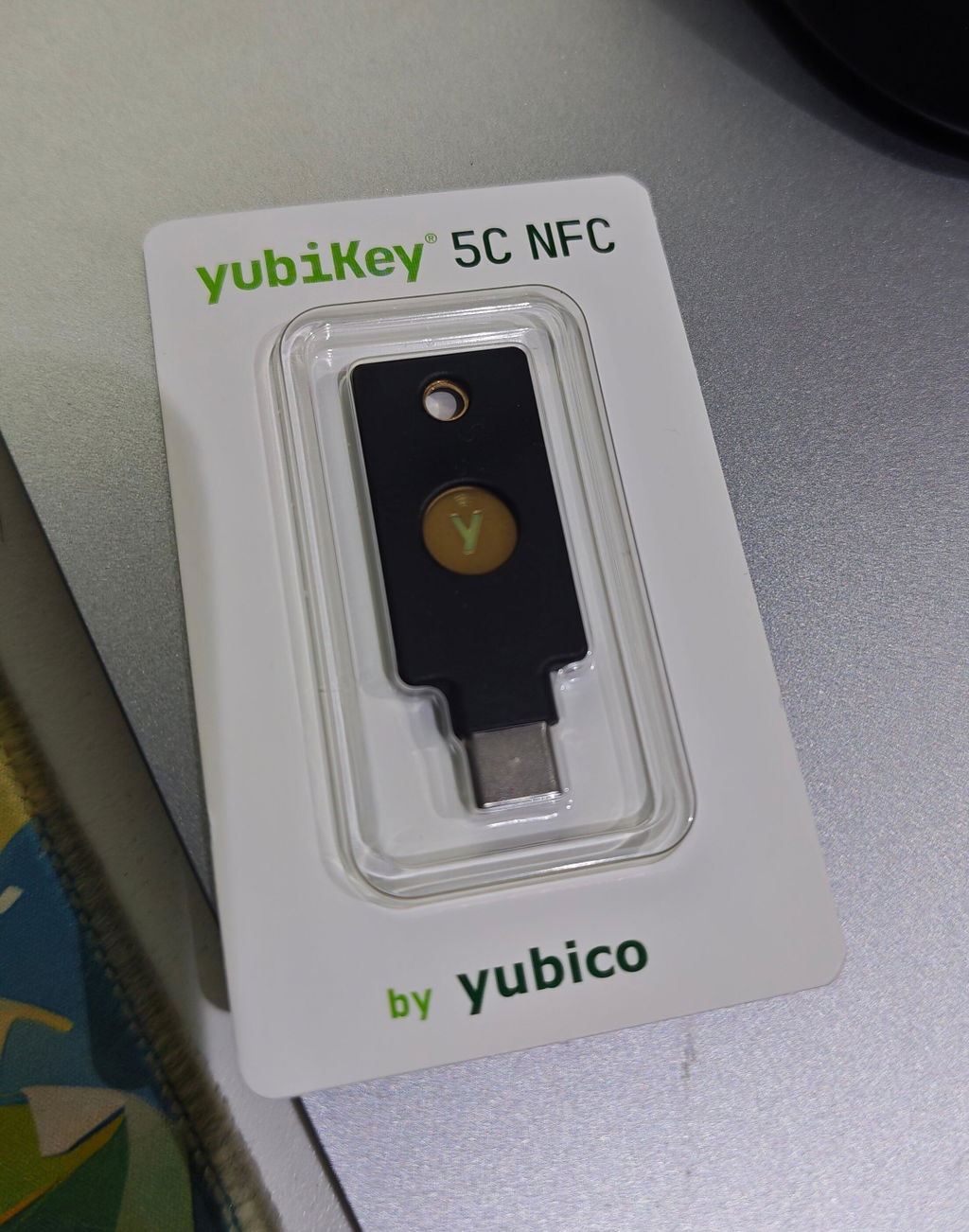
The YubiKey 5 Series supports FIDO2 and passkeys as well as OATH, PIV, OpenPGP and Yubico OTP. Start by choosing the connector used by your main devices. YubiKey 5 NFC suits computers with USB-A, while YubiKey 5C NFC connects directly to modern USB-C laptops, phones and tablets. Both include NFC for compatible devices.
YubiKey 5 NFC: USB-A and NFC
A practical choice for office desktops and other computers that still use USB-A, with NFC for compatible phones.

Yubico
฿2,490
- USB-A and NFC
- FIDO2, U2F, OATH, PIV, OpenPGP and OTP
- Designed for computers with USB-A
YubiKey 5C NFC: USB-C and NFC
Designed for current laptops, phones and tablets with USB-C, with NFC for supported devices.

Yubico
฿2,690
- USB-C and NFC
- FIDO2, U2F, OATH, PIV, OpenPGP and OTP
- Designed for modern USB-C devices
Prices and availability can change. Check the product page before ordering and confirm that the service or organization supports the required authentication standard.
Frequently asked questions
Does a new YubiKey come with a PIN?
No. You set the FIDO2 PIN yourself when you register your first account. 123456 is the default for the PIV application, which is separate from passkeys.
Can I remove the PIN from a YubiKey?
The app only lets you set or change the PIN; there is no command to remove it. The only way back to a key with no PIN is a FIDO2 reset, which also deletes every passkey on the key.
Does each YubiKey have its own PIN?
Yes. Each physical YubiKey stores its own FIDO2 PIN. Two keys registered with the same account can use different PINs.
Can each account on one YubiKey have a different PIN?
No. The FIDO2 PIN belongs to the key, not the website. Passkeys and FIDO2 credentials on one key use that key’s PIN.
Are data erased after three incorrect attempts?
No. The key normally asks to be removed and reconnected before another attempt. The data remain, and the retry allowance is not fully restored until the correct PIN is entered.
Does a YubiKey reset itself after eight incorrect attempts?
No. FIDO2 becomes blocked. The key does not erase itself, but making FIDO2 usable again requires a reset that removes the old FIDO/U2F credentials and PIN.
Can the FIDO2 PIN be changed without deleting passkeys?
Yes, provided the current PIN is known. A supported tool can change it without resetting FIDO2.
Does Factory reset delete a Google or Microsoft account?
No. The online account remains, but the reset YubiKey cannot use its previous credential. Sign in with a spare key, recovery code or another method and register the key again.
Does resetting FIDO2 remove codes from the Accounts screen?
Normally, resetting only FIDO2 does not erase OATH accounts shown on the Accounts screen because Yubico Authenticator separates application resets. Always read the warning for the specific model, particularly when FIDO2 and PIV have shared requirements.
Can a passkey be copied from one YubiKey to another?
No. Device-bound passkeys are not copied like files. Register the spare YubiKey as a separate credential with the same online account.
Summary
YubiKey security relies partly on limiting PIN attempts and avoiding ordinary email-based PIN recovery. After the allowed FIDO2 PIN attempts are exhausted, FIDO2 becomes blocked. The key does not erase itself, but the reset required to start again removes the old credentials permanently.
A FIDO2 PIN can use letters, numbers and symbols. Choose one that is memorable but not reused elsewhere. If you are uncertain, stop guessing and confirm every backup route before taking further action.
The most effective preparation is to register at least two YubiKeys, store recovery codes separately, maintain a list of account registrations and test the spare key regularly. If a reset is ever required, those preparations allow you to enter the accounts and enrol the key again safely.
Information reviewed on 16 October 2026. Menus, capabilities and PIN requirements can vary by YubiKey model, firmware, operating system and Yubico Authenticator version. Read the confirmation screen before deleting or resetting any data.


Share:
Tangem 2 Cards vs 3 Cards: Which Set Should You Choose?
What Is a Prediction Market? How It Works, Risks and What Thai Users Should Know