

Quick answer
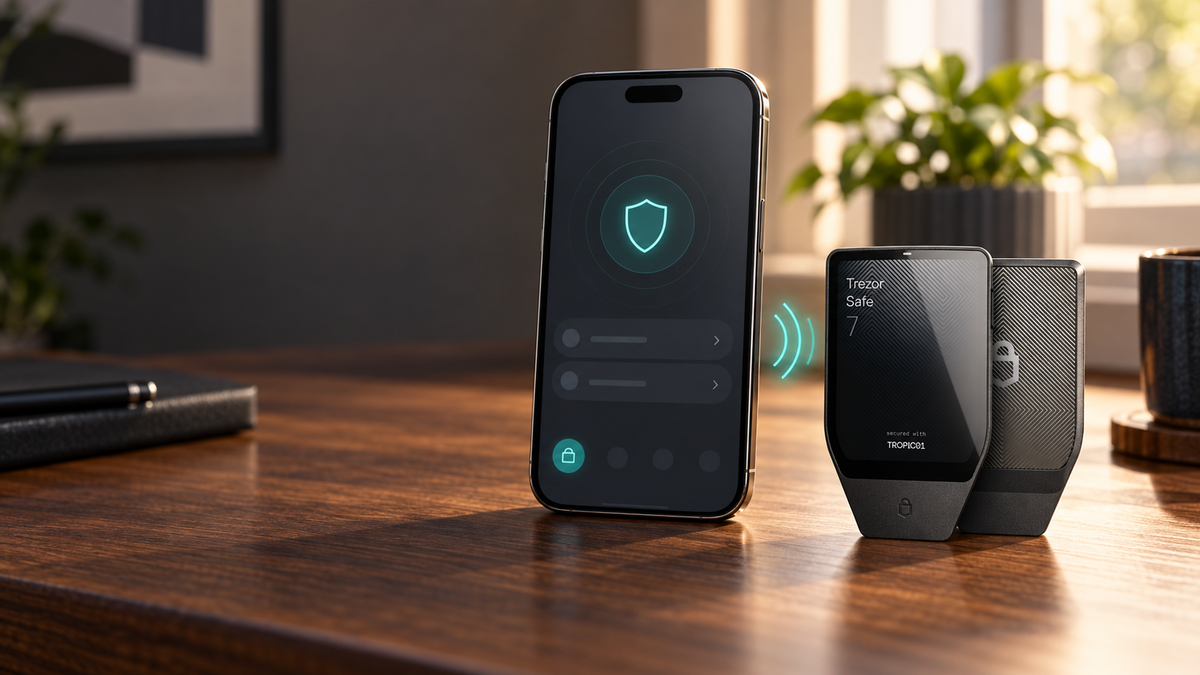
Trezor can work with an iPhone, but the experience depends on the model. Trezor Safe 7 provides full iOS support over Bluetooth, including device setup and transaction signing. Safe 5, Safe 3, Model T and Model One are limited to watch-only portfolio access on iPhone; signing and device management still require a computer or Android device.
For years, iPhone users had fewer options because earlier Trezor devices relied on USB connections that iOS could not use for full wallet operations. Safe 7 changes that. Its encrypted Bluetooth connection gives the iOS version of Trezor Suite the access needed for setup, account management and on-device transaction approval.
What “works with iPhone” really means
There is a major difference between checking a balance and controlling a wallet. Most Trezor accounts can be imported into Trezor Suite as watch-only accounts, but only Safe 7 can connect to an iPhone and authorize transactions. If you want to send, exchange or manage the device without returning to a computer, Safe 7 is the relevant model.
Important: A USB-C cable does not add iPhone support to older models. Safe 7 communicates with iOS over Bluetooth; when used with an iPhone, its USB-C port is for charging.
iOS support by Trezor model
| Model | iPhone capability | Connection | Main limitation |
|---|---|---|---|
| Trezor Safe 7 | Full Trezor Suite support | Bluetooth | USB-C charges the device on iPhone |
| Trezor Safe 5 | Watch-only access | No direct iPhone connection | Sign on desktop or Android |
| Trezor Safe 3 | Watch-only access | No direct iPhone connection | Sign on desktop or Android |
| Trezor Model T | Watch-only access | No direct iPhone connection | Best kept with a desktop workflow |
| Trezor Model One | Watch-only access | No direct iPhone connection | Cannot approve transactions on iOS |
What Safe 7 can do on iPhone
Safe 7 supports the full mobile workflow: initial setup, firmware updates, wallet creation or recovery, account management, receiving and sending assets, and the buy, sell or exchange services available in Trezor Suite. Service availability can vary by country and asset.
The phone remains an interface, not the holder of your keys. Addresses, amounts and other critical details must still be checked and approved on the Safe 7 screen.
How to pair Safe 7 with an iPhone
- Install the official Trezor Suite app from the App Store.
- Enable Bluetooth on the iPhone and power on Safe 7 nearby.
- In Trezor Suite, choose to connect a device over Bluetooth.
- On Safe 7, open Pair & connect and select Pair new device.
- Compare the pairing code shown on both screens and confirm it on Safe 7.
- Enter the one-time code on the iPhone to complete pairing.
- Install any required firmware update, then create a new wallet or access an existing one.
Never type your Seed Phrase into the iPhone. Recovery is completed through the secure prompts on the Trezor device. A website, message or support agent asking for the words is attempting to compromise the wallet.
Using Safe 3 or Safe 5 with iOS
Safe 3 and Safe 5 remain strong choices for people who manage their wallet from macOS, Windows, Linux or Android. Their public account data can be added to the iPhone app for balance and history monitoring, but the device cannot connect to iOS for signing.
Before receiving a large transfer, connect the Trezor to a supported computer or Android device and verify the address on its screen. A watch-only account is useful for monitoring, but it should not replace on-device address verification.
Is Bluetooth safe?
Safe 7 encrypts communication with Trezor Host Protocol. Its Bluetooth component is separated from the secure architecture and cannot directly access private keys. Every transaction still requires physical confirmation on the device, and Bluetooth can be disabled when it is not needed.
That protection does not replace careful review. Check the network, destination and amount on Safe 7, use a strong PIN, keep Trezor Suite current and reject pairing requests from unfamiliar phones.
Which model should you choose?
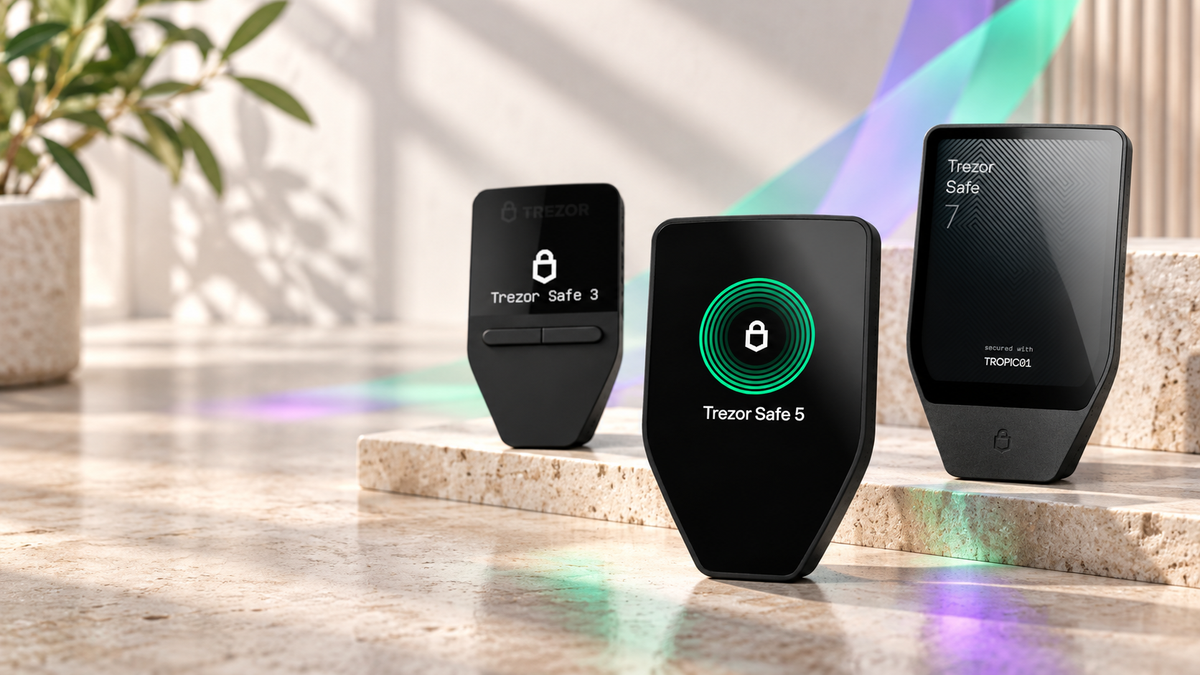
- iPhone is your main device: Safe 7 is the clear choice for full setup and signing on iOS.
- You use a computer and only monitor on iPhone: Safe 3 offers excellent value; Safe 5 adds a touchscreen.
- You already own an older Trezor: There is no need to replace it if a desktop or Android signing workflow suits you.
- You transact while travelling: Safe 7 removes the need for a cable or laptop, but the Seed Phrase should still be stored separately from both devices.
Recommended Trezor for iPhone

Trezor
- Full Trezor Suite support on iPhone
- Encrypted Bluetooth connection
- Large touchscreen for clear transaction review
This button selects Charcoal Black. Check the product page for current pricing and availability.
Frequently asked questions
Can Safe 7 connect to iPhone by USB-C?
Data communication uses Bluetooth. The USB-C connection charges Safe 7 when it is used with an iPhone.
Can Safe 3 or Safe 5 send crypto from an iPhone?
No. They can be monitored through a watch-only account, but transaction signing requires a supported computer or Android device.
What happens if the iPhone is lost?
Your assets remain on the blockchain and the private keys remain protected by Trezor. Install Trezor Suite on a new phone and pair Safe 7 again. The phone alone cannot move funds without the device and PIN.
Does Safe 7 work with iPad?
A compatible iPad running Trezor Suite can pair with Safe 7 over Bluetooth and follows the same approval process.
Must Bluetooth stay on all the time?
No. Enable it when connecting or transacting, and disable it on Safe 7 whenever you do not need the wireless connection.
Final verdict
Safe 7 is the Trezor to buy if you want a complete iPhone workflow. It pairs over Bluetooth and signs directly from Trezor Suite on iOS. Safe 3, Safe 5 and earlier devices can still serve iPhone users well for monitoring, but transaction approval remains a desktop or Android task.
Sources
Written by Bank · Updated September 29, 2026

Share:
Does Trezor Support Solana? Compatible Models, Tokens and Setup