

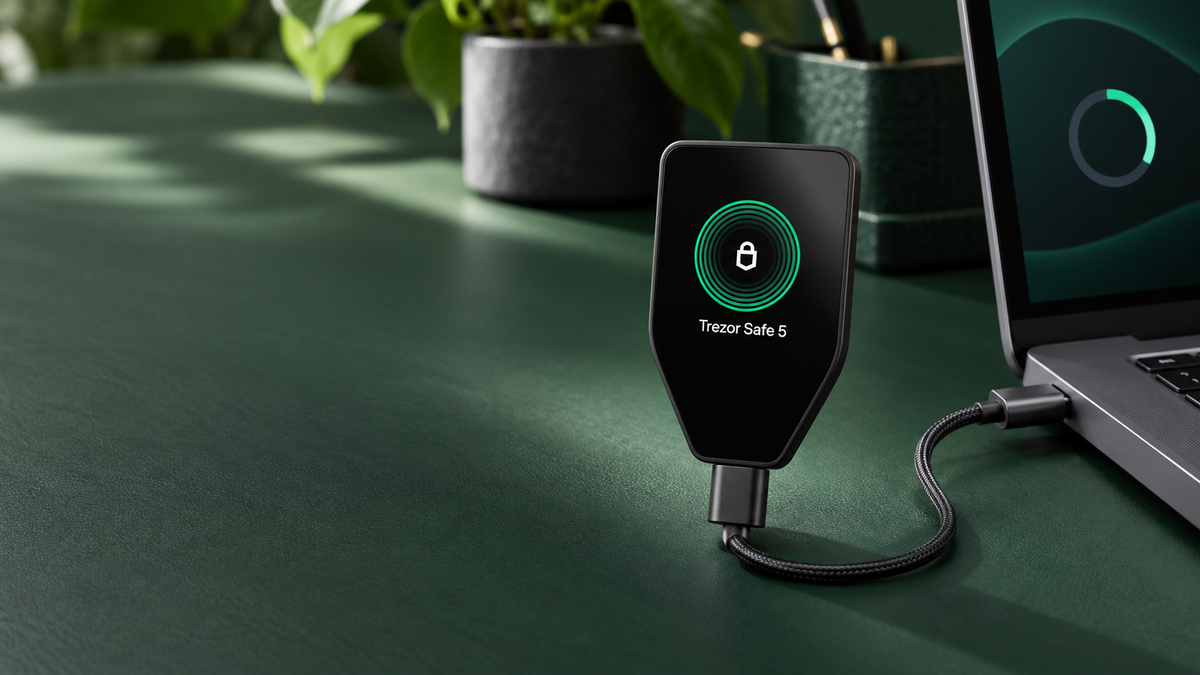
Quick answer
Have your Seed Phrase available and verify it before updating Trezor firmware. A routine update should preserve the wallet, but a failed installation or interrupted connection can wipe the device. Your crypto remains on-chain and can be recovered with the correct backup. Existing devices cannot currently be updated through iOS; use a computer or Android device.
Firmware is the software running inside a Trezor. It controls key operations, transaction display and confirmation on the device. Updates deliver security fixes and new capabilities, but they should never begin until you know exactly where the wallet backup is and have confirmed that it is usable.
Can a firmware update erase the wallet?
A successful update normally leaves the wallet, addresses and accounts unchanged. Crypto is recorded on the blockchain; the device protects the keys used to control it. After the update, the same PIN and wallet configuration should reopen the same accounts.
During installation, however, Trezor restarts in bootloader mode and writes new firmware. A faulty cable, lost connection or installation error can trigger a device wipe. The assets are not destroyed, but access must then be restored from the Seed Phrase.
Do not update if the Seed Phrase is missing. A wipe is uncommon during a normal update, but the backup is the only reliable recovery path if something goes wrong.
Do you need to back up the Seed Phrase?
You do not create a new Seed Phrase for each firmware update. You need the original backup created during wallet setup, written in the correct order and stored offline. A photo, cloud file, email or note on a phone is not a secure backup.
Run Check wallet backup before updating. This dry-run recovery confirms that the words match the wallet on the device without replacing it. Safe 7 can perform the check directly from Settings > Security > Check backup; other models begin the process in Trezor Suite.
Passphrase users also need the exact passphrase for every protected wallet. The Seed Phrase restores the base wallet, while the passphrase opens the separate wallet built on top of it. Capitalisation, spaces and symbols all matter.
Pre-update checklist
- Locate every required Seed Phrase or Multi-share component and complete Check wallet backup.
- Know the device PIN, but never store it beside the Seed Phrase.
- Confirm any passphrase needed for funded wallets.
- Use the current Trezor Suite from an official source.
- Connect with a reliable data-capable USB cable directly to the computer.
- Keep the computer powered, disable sleep and do not disconnect the device.
- Read the firmware version on Trezor itself before approving the installation.
There is no need to move assets away from Trezor before a normal update when the backup has been verified. If the backup has never been tested, pause and complete the dry run first.
How to update Trezor firmware on a computer
- Open the latest Trezor Suite and connect the device with a trusted cable.
- Unlock it with the PIN and wait for the security checks to finish.
- Select Update now from the firmware banner, or check Settings > Device.
- Read the release details and confirm that Suite is offering the expected official version.
- Select Install firmware and follow the instructions shown in Suite and on Trezor.
- When the device enters bootloader mode, review the version on its screen and approve it there.
- Keep Suite open and the cable connected until installation and restart are complete.
- Unlock the device again, confirm the accounts, and verify a receiving address on its screen.
A Model One running very old firmware may require two stages, first for the bootloader and then for firmware. Follow Trezor Suite through both confirmations rather than disconnecting after the first restart.
Android and iPhone support
| Platform | Update an existing device | Method |
|---|---|---|
| Computer | Supported | Trezor Suite Desktop or the supported web workflow |
| Android | Supported | USB-C or the connection supported by the model |
| iPhone / iOS | Not currently supported | Move to a computer for the update |
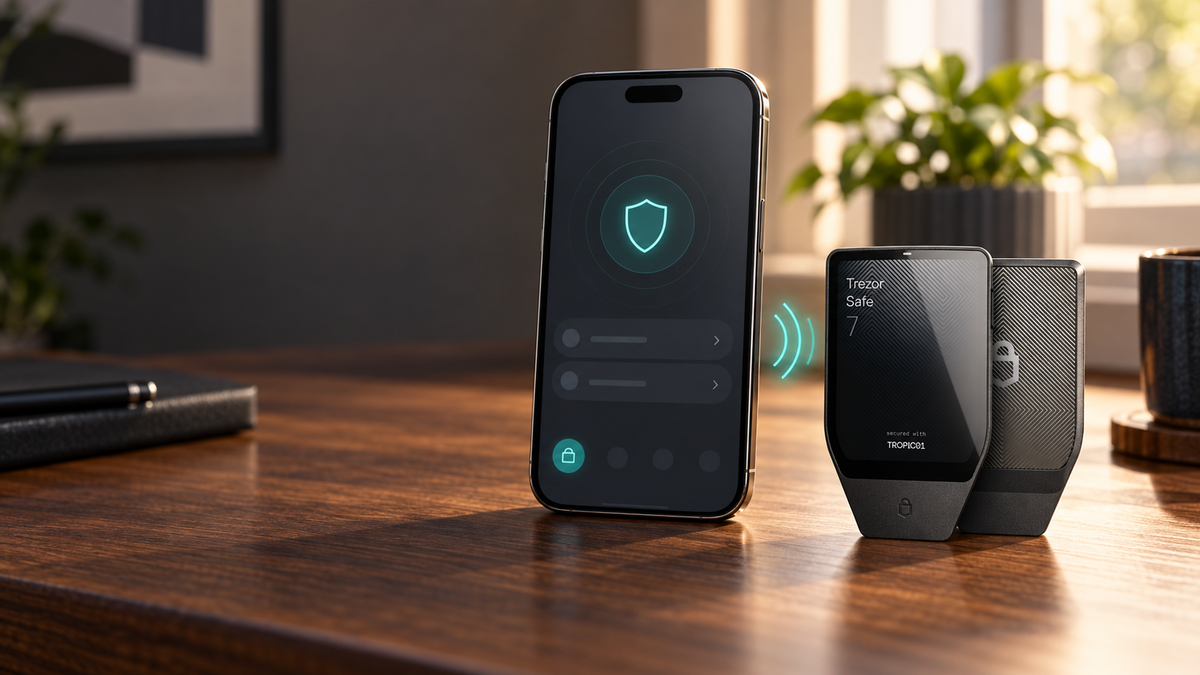
Safe 7 works with Trezor Suite on iPhone over Bluetooth, but iOS cannot currently update firmware on an already configured device. Connect Safe 7 to a computer when an update is required.
One important exception: A brand-new Safe 7 ships without firmware and can install its first firmware during iPhone setup over Bluetooth. That initial installation is separate from updating an existing wallet later.
What to do if the update fails
- Never enter the Seed Phrase into a computer, website or support chat.
- Try a known-good cable or another USB port, then reopen Trezor Suite.
- Reconnect the device and complete the official firmware installation.
- If Trezor reports that no wallet is present, start Recover wallet from Suite.
- Enter recovery words only as instructed by the physical Trezor.
- After recovery, add the original accounts and enter the exact passphrase if one was used.
- Verify a known receiving address before moving a large amount.
If balances do not appear after recovery, common causes include the wrong Seed Phrase, a missing account type or a mistyped passphrase. A firmware update cannot independently transfer assets off the blockchain.
Avoiding fake firmware and scams
- Update only through Trezor Suite or an official Trezor page.
- Do not download firmware from email links, ads, private messages or chat groups.
- Check the domain and never dismiss an invalid firmware-signature warning.
- Read every prompt on the Trezor screen and cancel if the version or warning is unexpected.
- Trezor and SIAMBC will never request your Seed Phrase, passphrase, Private Key or PIN to perform an update.
Trezor's bootloader verifies firmware signatures before running the software, while Trezor Suite performs additional integrity checks. Stop using the device for transactions if either the device or Suite reports unofficial or modified firmware.
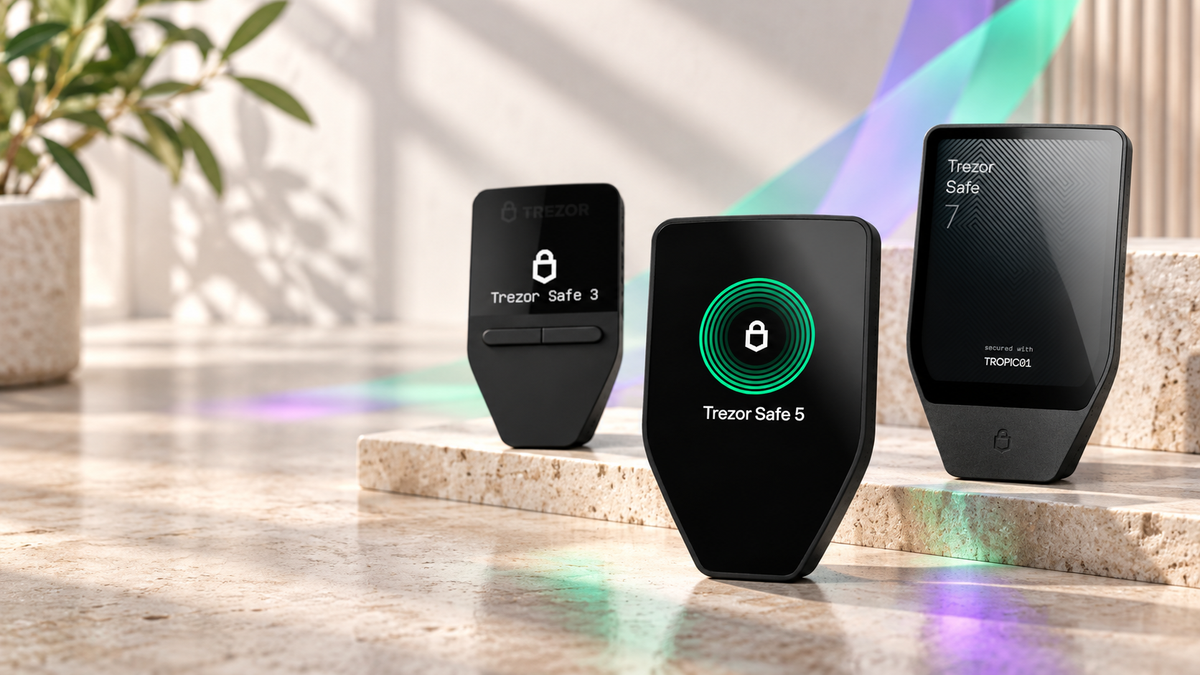
Current Trezor models

Trezor
- Strong value for first-time self-custody
- CC EAL6+ Secure Element
- Supports Check wallet backup before updates
This button selects Cosmic Black. Check the product page for current pricing.

Trezor
- Colour touchscreen for clear review
- Haptic feedback during confirmation
- Built-in Check wallet backup support
This button selects Black Graphite. Other colours are available on the product page.

Trezor
- Checks the Seed Phrase directly on-device
- Dual Secure Elements and a large touchscreen
- Initial firmware installation available during iPhone setup
This button selects Charcoal Black. Later firmware updates still require a computer or Android.
Frequently asked questions
Will a Trezor firmware update remove my crypto?
A successful update does not remove assets. If the device is wiped after an interrupted installation, the wallet can be recovered from the correct Seed Phrase because the assets remain on-chain.
Do I enter the Seed Phrase for every update?
No. A normal update requires confirmation on the device, not the Seed Phrase. If a computer window asks for every word, stop immediately.
What if the Seed Phrase is missing?
Do not update. If the device still works, move the assets to a new wallet with a newly created and verified backup before taking any risk with the existing device.
Can an iPhone update Safe 7?
Not after the wallet has been configured. Use a computer or Android device for firmware updates. A new Safe 7 can install its first firmware over Bluetooth during iPhone setup.
Should every update be installed immediately?
Review the release notes and prepare the backup first. Security fixes should not be delayed unnecessarily, but avoid updating while travelling, under time pressure or without access to the verified backup.
Final checklist
A safe Trezor firmware update begins with a verified Seed Phrase, official Trezor Suite and a stable connection. There is no need to create a new backup, but the existing one must be recoverable. iPhone users currently need a computer for updates to configured devices, while Android supports mobile firmware updates.
Sources
- Trezor firmware update guide
- Wallet backup and recovery troubleshooting
- Getting started with Trezor Safe 7
Written by Bank · Updated September 30, 2026
Share:
Can You Use Trezor With an iPhone? iOS Compatibility and Setup