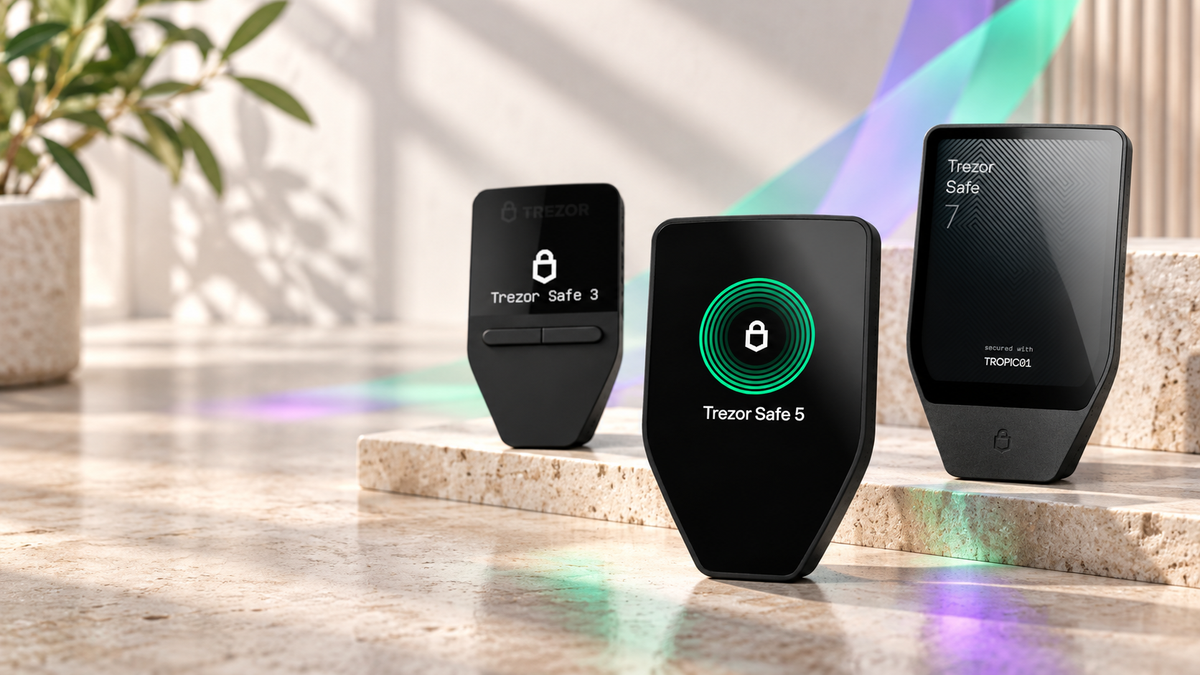
Many people who have used a Trezor One will have run into the screen that reads Bootloader, often repeatedly. If you have this problem, SIAMBC suggests following these steps.

  • Disconnect the Trezor from the computer.
  • Download and install Trezor Bridge.
  • Download and install Trezor Suite.
  • Once both are installed, shut the computer down and start it again.
  • Open the Trezor Bridge page again.
  • Connect the Trezor. A screen will appear as shown — press "My Trezor is empty" and then the green Update button.
  • On the device itself, press the right button at "Continue".
  • Carry out the initial setup as normal.
Latest Stories

View all

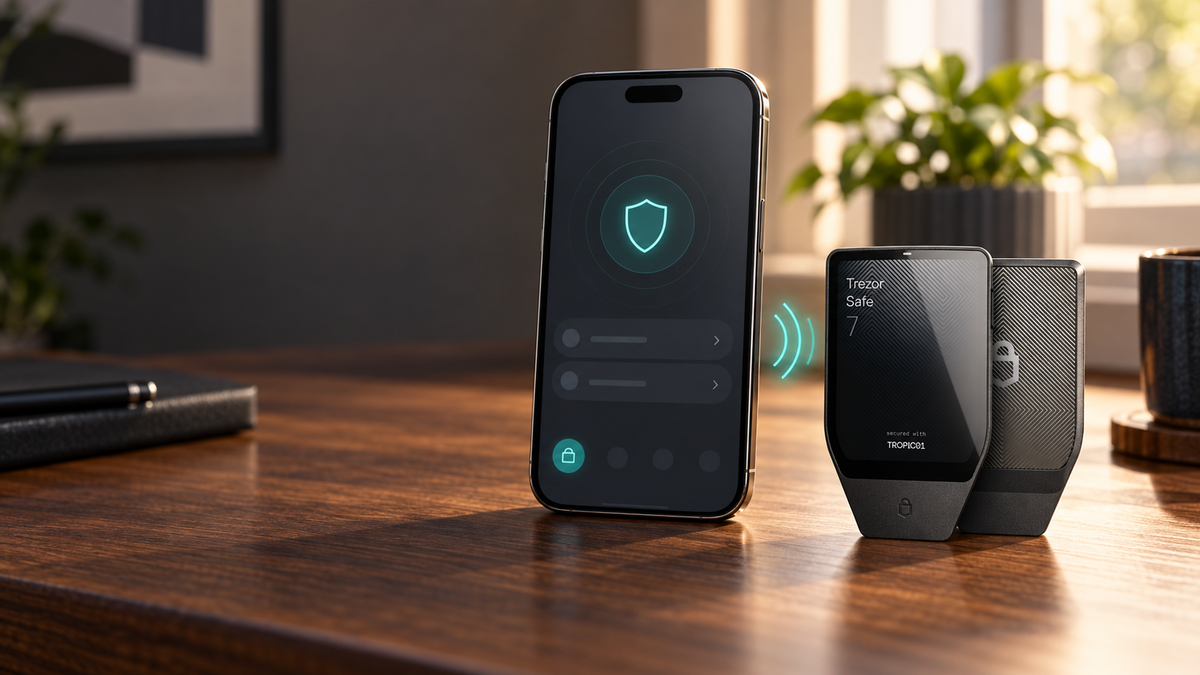
Trezor Safe 7 paired with an iPhone over Bluetooth

Can You Use Trezor With an iPhone? iOS Compatibility and Setup

Learn which Trezor models work with iPhone, why Safe 7 offers full iOS support, and how to pair it securely over Bluetooth.

Read moreabout Can You Use Trezor With an iPhone? iOS Compatibility and Setup

Trezor Safe 3, Safe 5 and Safe 7 for managing Solana securely

Does Trezor Support Solana? Compatible Models, Tokens and Setup

Does Trezor support Solana? See which models work with SOL and SPL tokens, how to use Trezor Suite, stake SOL and transfer assets safely.

Read moreabout Does Trezor Support Solana? Compatible Models, Tokens and Setup

Bitwise NEAR ETF concept with the NEAR logo, exchange documents and a rising market chart

Bitwise NEAR ETF Moves Closer to Launch After NYSE Arca Approval

The Bitwise NEAR ETF has cleared major listing and registration milestones. Here is what NRR could mean for NEAR investors, direct ownership and SIAMBC customers.

Read moreabout Bitwise NEAR ETF Moves Closer to Launch After NYSE Arca Approval