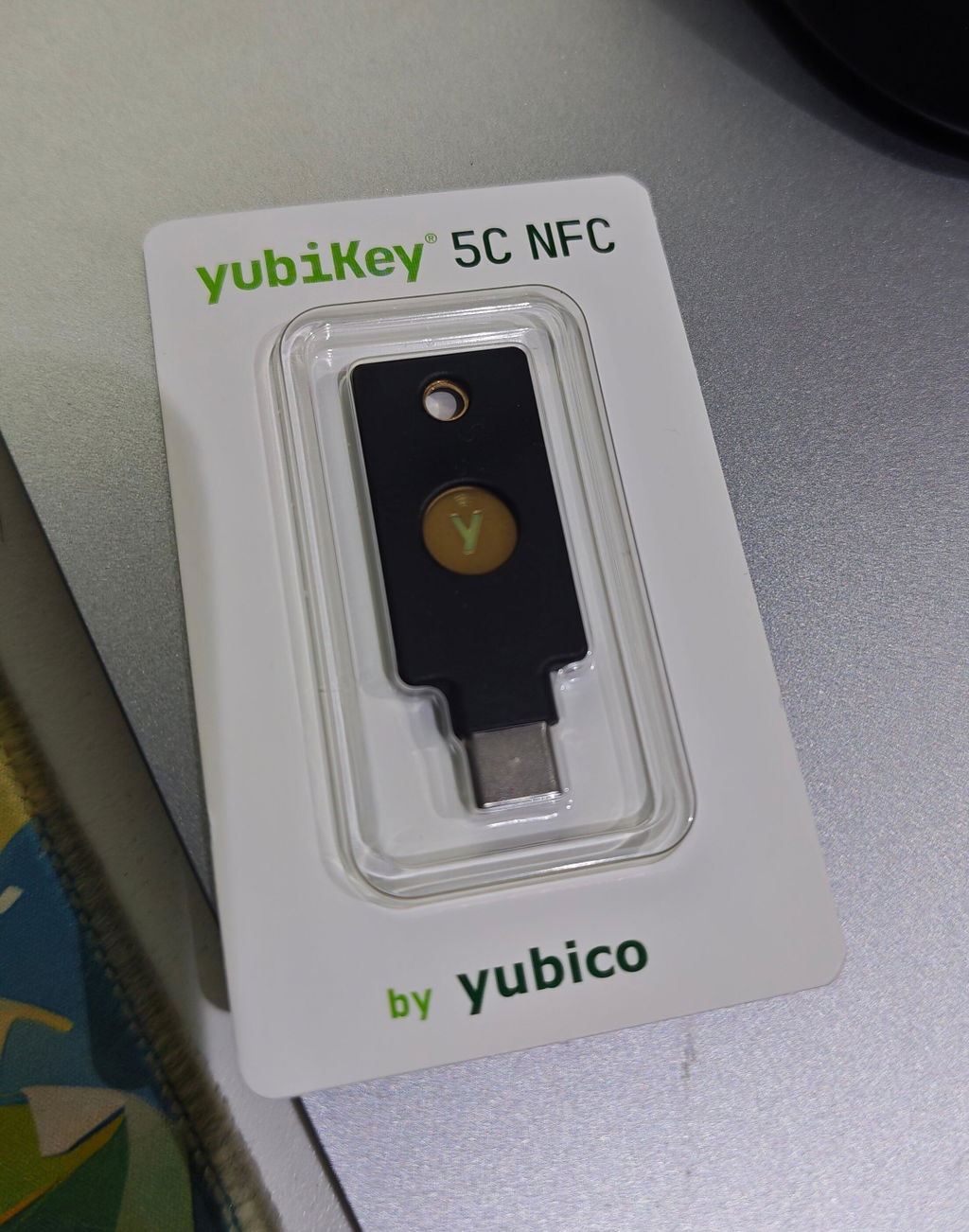
How to Set Up and Use YubiKey 5 NFC
The YubiKey 5 NFC is a USB-A security key that can also be tapped against a phone over NFC. It verifies your identity when you sign in to online accounts such as email, Google and Microsoft accounts, password managers, and supported trading platforms. Once the key is registered with an account, a person who obtains your password cannot sign in without physical possession of the key. This model supports security key authentication, stores 6-digit OTP codes, and supports enterprise applications such as smart card authentication.
This guide covers unboxing, installing the app, setting a PIN, registering the key with your first account, registering a backup key, and using the key with your phone. Each step is illustrated, and button labels are shown exactly as they appear on screen.
Supported standards and devices
| Feature | YubiKey 5 NFC |
|---|---|
| Supported standards | FIDO2/WebAuthn (passkeys), FIDO U2F, Yubico OTP, OATH-TOTP, OATH-HOTP, Smart card (PIV), and OpenPGP |
| Connector | USB-A |
| NFC | Yes, for use with NFC-enabled phones |
| Computers | Windows, macOS, ChromeOS, and Linux |
| iPhone | NFC on iPhone 7 or later, or a wired connection through an Apple USB-A adapter |
| iPad | iPad does not support NFC; connect through a USB-A adapter |
| Android | NFC, or a wired connection through a USB-A to USB-C adapter |
FIDO2 and FIDO U2F are the standards that website settings pages typically present as Security key or Passkey. OATH generates the 6-digit codes that typically change every 30 seconds, as in a mobile authenticator app, except that the secret is stored on the key rather than on the phone. PIV and OpenPGP are used for enterprise systems and email encryption; most individual users do not need to configure them.
Before you begin
- Your YubiKey 5 NFC and, if available, a second key to serve as a backup, so that both keys can be registered with your accounts at the same time.
- A computer with a USB-A port and a current version of Chrome, Edge, Safari, or Firefox. Initial setup is most straightforward on a computer.
- The password for the account with which you will register the key, and the ability to sign in to that account.
- Paper or another secure place to record the key's PIN and the account recovery codes (backup codes) that the website provides when you enable two-step verification.
Important: Register at least two keys with every important account, and keep the account recovery codes as an additional safeguard. There is no way to bypass a key's PIN, and the data stored on a key cannot be extracted for recovery. If you have only one key and it is lost, or the PIN is forgotten and the key must be reset, no one can restore access to your account from the key itself. Access would then have to be recovered through the website's own account recovery process.
Unbox and inspect the key
The package contains one key in a clear plastic blister pack, with the address yubico.com/start printed on the back. No cable, adapter, or battery is included; the key is powered by the device it is plugged into or, when tapped, by the device's NFC field.
1. Locate the touch contact
The front of the key has a gold circle with the "y" logo at its center; this circle is the touch contact. The USB-A connector is at one end, and a key ring hole is at the other.

The back of the key is printed with a serial number, which serves as a reference when you contact SIAMBC about warranty service.
If the packaging appears opened or the key does not match the image: Do not register the key with any account. Contact SIAMBC and provide photos of the packaging and the key. To verify the key yourself as well, open yubico.com/genuine on a computer, insert the key, run the check, and allow the browser to read the key's make and model. The page reports whether the key is a genuine Yubico device and identifies the model.
Before first NFC use: Insert the key into a USB port on a powered-on computer and leave it in place for at least 3 seconds. This is required only once: NFC is disabled on new keys for shipping. After this initial insertion, the key can be tapped against a phone as normal.
Install the Yubico Authenticator app
The app is not required to sign in to most websites, but it allows you to set a PIN, view the passkeys stored on the key, and store 6-digit OTP codes from a single place. Download it from yubico.com/products/yubico-authenticator or from your device's app store, and confirm that the developer is Yubico.
2. Download the correct version for your device
The download page lists the desktop versions for Windows, macOS, and Linux separately from the mobile versions for Android, iPhone, and iPad. Select the version for the device you will use for setup. Starting with the desktop version is recommended because it includes all menus.

If the app on Windows reports that it requires administrator privileges, close it, right-click the app icon, and select Run as administrator.
3. Insert the key and check the Home page
Open the app, insert the key, click the menu icon at the top left, and select Home. This page displays the key's model name, serial number, and firmware version. The example screenshot shows a YubiKey 5C NFC; your screen will show YubiKey 5 NFC.

Record the firmware version. The firmware is installed at the factory and cannot be updated, and some features depend on the firmware version, such as the number of passkeys the key can store and whether the key can be reset from an iPhone.
Set the key's PIN
A new key has no PIN set. You set the PIN once, and the same PIN is then used for every account registered with this key. The PIN belongs to the key itself; it is not a website password, and it is never sent to or stored by any website.
- The PIN can be 4 to 63 characters long and may include numbers, letters, and symbols. A PIN of at least 6 characters, without sequential or repeated digits, is recommended. Some keys reject easily guessed PINs; the app displays the requirements for your key.
- After 3 consecutive incorrect attempts, the key must be removed and reinserted before you can try again.
- After 8 incorrect attempts in total, FIDO2 locks and the key must be reset, which deletes all passkeys on the key.
- Entering the correct PIN once resets the remaining attempts to the maximum.
4. Open the Passkeys page and click Set PIN
Insert the key, click the menu icon at the top left, and select Passkeys. The screen displays No passkeys stored because the key has not yet been registered with any account. Click Set PIN under Manage. If the app window is too narrow to display this section, first click the menu icon at the top right.

5. Enter the PIN twice and click Save
Enter the PIN in the New PIN field, and then enter it again in the Confirm PIN field. The requirement is displayed below the field: A PIN must be 4-63 characters long. Click Save, and then record the PIN and store it in a secure place, separate from the key.

6. iPhone option: open Manage PIN
If a computer is not available, the PIN can be set in the Yubico Authenticator app on iPhone: pull down on the screen and hold the key against the back of the iPhone when the app prompts you to scan, then tap the three-dot menu at the top right, select Configuration, and tap Manage PIN under FIDO.

7. iPhone option: enter the PIN and tap Set
In the Set PIN window, enter the PIN in the New field, enter it again in the Verify field, and then tap Set. When the app prompts you to scan, tap the key again.

Setting the PIN later: If you skip this step, the browser prompts you to set the key's PIN the first time you register a passkey with a website. The PIN is set once and applies to every account.
Register the key with your first account
8. Select the first account
Start with your primary email account, because anyone with access to your email can reset the passwords of almost all your other accounts. Then continue with your password manager, banking and trading platform accounts, cloud storage, and social media. The image below shows examples of services that support security keys; however, not every website supports them, and menu names vary from website to website.

9. Open the account's security settings
Sign in to the account on a computer and open the account settings page. Locate the security section, which may be labeled Security, 2-Step Verification, Two-factor authentication, or Multi-factor authentication. Some websites provide a separate Passkeys section.

10. Select Security key or Passkey and touch the key
The security page offers several verification methods. Select Security key to use the key as a second step after your password, which most websites support, or select Passkey to sign in with the key and PIN without entering a password. Insert the key, enter the PIN if prompted, and touch the gold contact when instructed on screen. When registering from a phone, tap the key against the back of the phone instead of inserting it.

When creating a passkey, select the security key option: The browser or operating system often offers to save the passkey on your phone or computer by default, for example in iCloud Keychain, Google Password Manager, or Windows Hello. Select the option labeled Security key or USB security key, or click Use a different device and then select the key. Otherwise, the passkey is saved on the device rather than on the security key.
After registration, assign the key a recognizable name on that page, such as Primary key. If the website provides recovery codes, record or print them immediately.
11. Sign out and sign in again
Sign out, and then sign in again from a private browser window (Incognito or Private). The website should prompt you to insert or tap the key. If it does not, the website may already recognize this device as trusted. If you registered a passkey, the website's name appears on the app's Passkeys page, as shown below. A registration as a Security key does not appear in the app's list; this is expected.

As a Security key, this key can be registered with an unlimited number of accounts. Storage for passkeys on the key itself is limited to 25 or 100, depending on the firmware version. The line at the bottom of the Passkeys page shows how many are in use.
Register a backup key
Complete this step immediately after registering the first key. On the same security page of each account, add another key, and then insert or tap the backup key. Repeat this for every account with which the primary key is registered.
- The backup key has its own PIN, which must be set separately.
- The backup key may have a different form factor from the primary key; for example, a primary key that remains in your laptop and an NFC-capable backup key. However, if you also store OTP codes on the key, the backup key must also be a YubiKey 5 Series key, because Security Key Series keys cannot store OTP codes.
- Store the backup key in a different location from the primary key; for example, keep the primary key on your key ring and the backup key at home.
- If the primary key is lost, sign in with the backup key, and then remove the lost key from the security page of every account.
Store 6-digit OTP codes on the key
Some accounts offer only verification with a 6-digit authenticator app and no Security key option. This key can store the secret for such accounts, and the Yubico Authenticator app displays the 6-digit code when the key is inserted or tapped. Because the secret is stored on the key rather than on your phone, the codes are available on any phone or computer with the app installed.
12. Click Add account on the Accounts page
In the desktop app, open the Accounts page and click Add account under Setup.

13. Scan the QR code on the website
On the account's security settings page, select the option to enable verification with an authenticator app. The page displays a QR code. Ensure that the entire QR code is visible on screen and not covered by another window, and then click Scan QR code in the app. On macOS, the first time you do this, the system asks you to allow the app to record the screen. Verify the account details in the Issuer and Account name fields. Optionally, enable Require touch so that the key must be touched each time the code is displayed. Click Save, and then enter the 6-digit code on the website to confirm.

If you have a backup key, insert it and scan the same QR code again before closing the page. The same QR code works for both keys, but most websites do not display it again after confirmation.
14. iPhone option: add an account in the mobile app
Open the Yubico Authenticator app on iPhone and hold the key against the back of the iPhone when the app prompts you to scan. Then tap the three-dot menu at the top right, select Add account, and either use the camera to scan the QR code displayed on another screen or tap Enter manually and enter the secret.

PIV and OpenPGP are used for enterprise systems and email encryption. If you do not use them, no setup is required. If you use PIV, note that it ships with a default PIN of 123456 and a default PUK of 12345678, both of which must be changed before the key is put into use. For details, see the article on YubiKey PINs and resets.
Using the key with phones and tablets
- iPhone 7 or later: tap the key against the back of the phone to sign in through Safari and supported apps. For a wired connection, use an Apple Lightning to USB-A or USB-C to USB-A adapter, or another high-quality adapter.
- iPad does not support NFC and requires the same type of adapter; the Yubico Authenticator app on iPad does not support this model.
- Android: NFC works for two-step verification, but Android does not currently support passwordless passkey sign-in over NFC; for that, connect the key through a USB-A to USB-C adapter.
- The Yubico Authenticator app on iPhone can set the PIN and display OTP codes over NFC.
To use NFC, hold the key flat against the back of the phone and keep it still until the screen confirms the connection. If there is no response, remove any thick phone case and slowly move the key across the back of the phone.
Forgotten PIN and key reset
A forgotten PIN cannot be recovered. The only option is to reset the FIDO2 application in the Yubico Authenticator app, which deletes the PIN and all passkeys on the key. Your online accounts are not affected, but you must first sign in with your backup key or recovery codes and then register the key again. For step-by-step instructions and details of what is deleted, see the article on forgotten YubiKey PINs and FIDO2 reset.
On iPhone, keys with firmware earlier than 5.7.4 can be reset in the app only over NFC, and FIDO2 cannot be reset from an iPad. In these cases, use a computer or an Android device instead.
Frequently asked questions
If I lose the key, can someone who finds it access my accounts?
Not with the key alone. If the key is registered as a Security key, the finder would also need your account password. If it is registered as a passkey, the finder would also need the key's PIN and is limited to 8 incorrect attempts. Nevertheless, sign in with your backup key and remove the lost key from every account as soon as possible.
Do I need to install the Yubico Authenticator app?
Not for signing in. Most websites work with the key directly through the browser. The app is used to set the PIN, view passkeys, store 6-digit OTP codes, and reset the key when necessary.
Can I update the key's firmware?
No. The firmware is installed at the factory and cannot be modified, which also means that the firmware on the key cannot be covertly altered. The version is shown on the app's Home page.
How can I tell whether a website supports this key?
Open the account's security settings. If a Security key or Passkey option is available, the key is supported. If the only option is a 6-digit authenticator app, store the OTP code on the key as described in the previous section.
Why does a long string of characters appear when I touch the key?
If the key is inserted in a computer and the contact is touched briefly when no prompt is displayed, the key outputs a Yubico OTP preconfigured at the factory, entered as keyboard input. This is harmless; simply delete the text.
Will SIAMBC and Yubico ask for your PIN, remote access to your computer, or the key itself? No. Neither SIAMBC nor Yubico will ever make such a request. Anyone who calls, messages, or emails you requesting your key's PIN or your account recovery codes, asking you to install software such as AnyDesk or TeamViewer to assist with setup, or asking you to send them the key is attempting fraud. This applies without exception, whether the person claims to be SIAMBC staff, uses Yubico's name, or cites a warranty claim, identity verification, or account recovery. For warranty service or exchanges, contact SIAMBC through the channels listed on siambc.com, which you open yourself. Do not respond to links or phone numbers sent to you.
Summary
Three essential steps for your YubiKey 5 NFC: set a PIN and record it separately from the key, register a backup key with every account from the start, and when creating a passkey, select the security key option rather than saving the passkey to your phone. With all three in place, you retain access to your accounts even if a key is lost or damaged.
If setup does not succeed or you need assistance at any step, contact SIAMBC directly regarding usage, warranty, and product exchanges in Thailand.
For product details, see YubiKey 5 NFC. To select a backup key, browse all Yubico keys. Guides for other models are available on the security key guides page.
Content last reviewed: October 21, 2026. On-screen text may vary with app and browser versions.
Bought your device from SIAMBC? Register your warranty
Keep your serial number on file with us so claims are quicker. It takes under a minute.
Register warranty