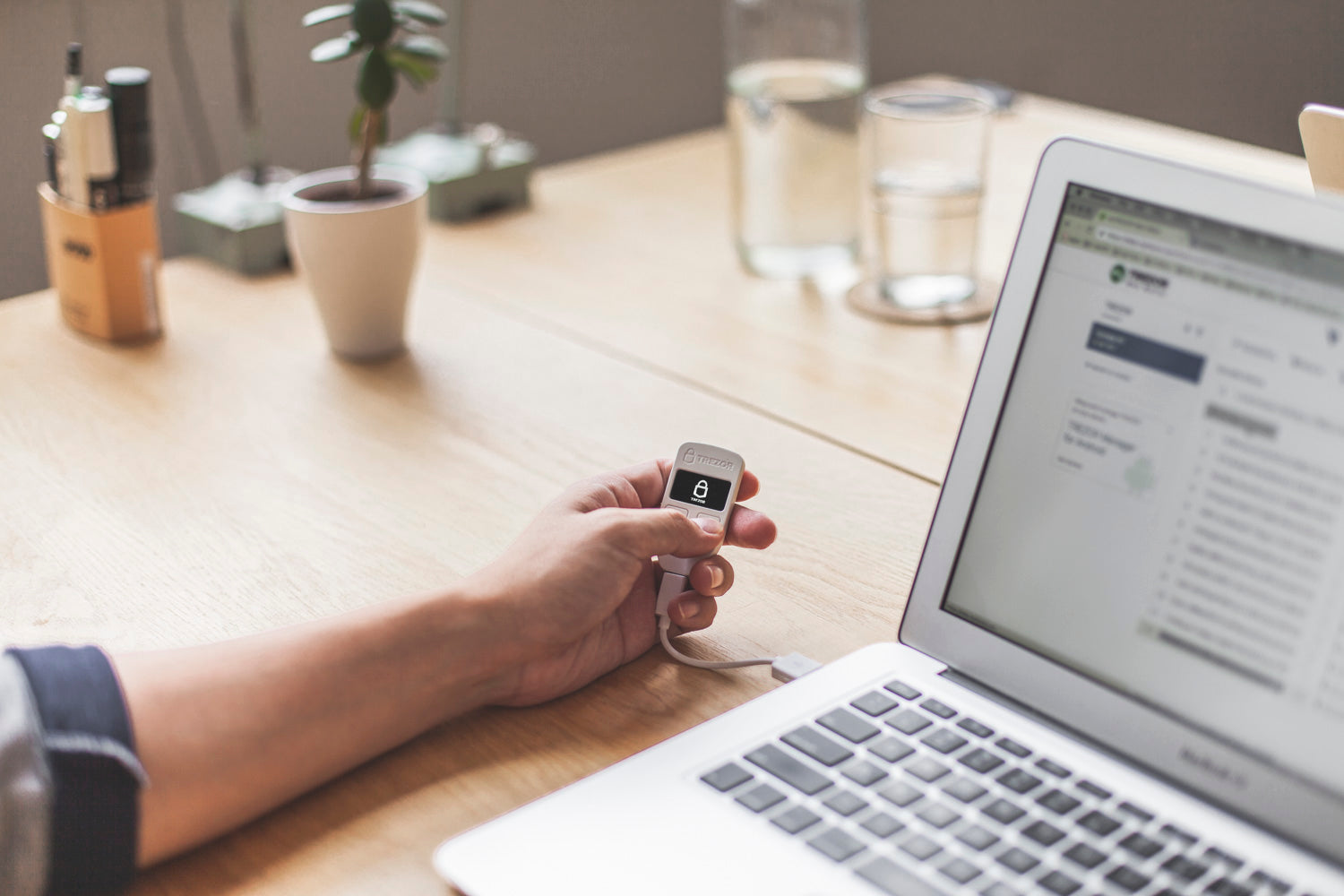
If you connect a Trezor and the computer cannot find it, follow these steps.

  • Download the Zadig USB drivers.
  • Install them on your machine.
  • Connect the Trezor to the computer while holding both buttons down, then release the two buttons afterwards.
  • Open Zadig, choose "Option" from the top menu, and select "List all devices".
  • For the device listed, choose "Unknown Device #1" or something close to it.
  • To the right of the green arrow, choose "libusb0 (v1.2.6.0)" from the options.
  • Click the option that says "Install Driver" or "Replace Driver".
  • Wait until it finishes, then close Zadig.
  • Unplug the Trezor and go to the wallet on the Trezor website.

That is all it takes for the computer to find the Trezor.

If you have further questions you can contact SIAMBC at order@siambc.com.
Latest Stories

View all

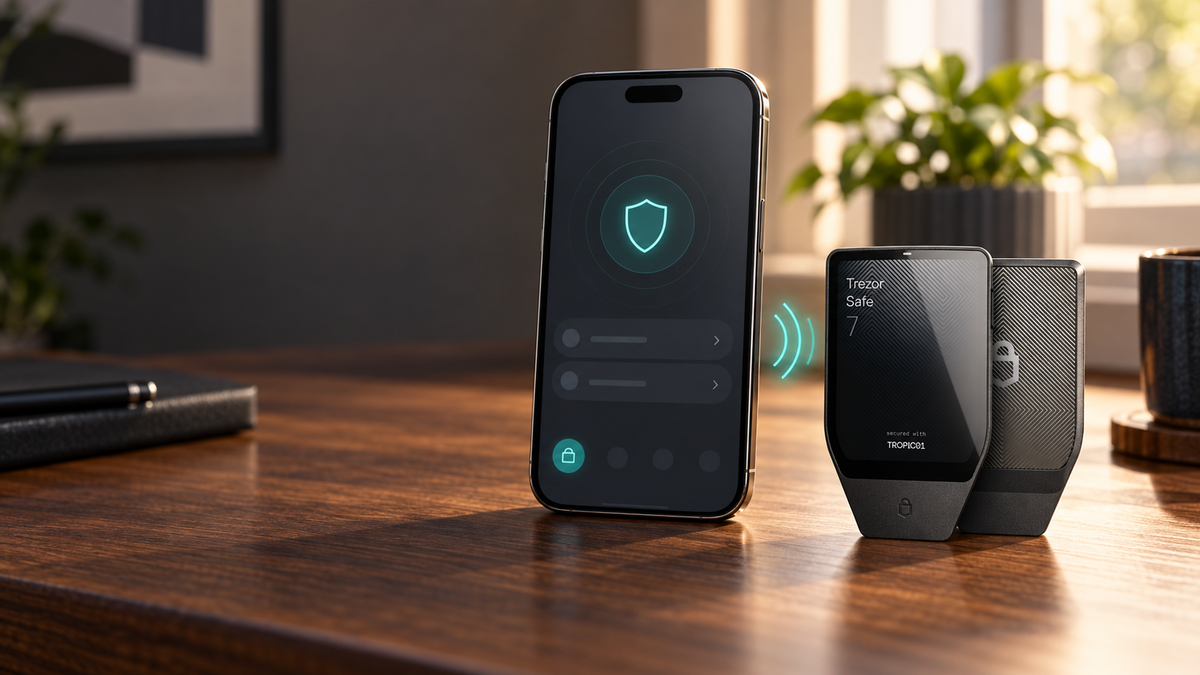
Trezor Safe 7 paired with an iPhone over Bluetooth

Can You Use Trezor With an iPhone? iOS Compatibility and Setup

Learn which Trezor models work with iPhone, why Safe 7 offers full iOS support, and how to pair it securely over Bluetooth.

Read moreabout Can You Use Trezor With an iPhone? iOS Compatibility and Setup

Trezor Safe 3, Safe 5 and Safe 7 for managing Solana securely

Does Trezor Support Solana? Compatible Models, Tokens and Setup

Does Trezor support Solana? See which models work with SOL and SPL tokens, how to use Trezor Suite, stake SOL and transfer assets safely.

Read moreabout Does Trezor Support Solana? Compatible Models, Tokens and Setup

Bitwise NEAR ETF concept with the NEAR logo, exchange documents and a rising market chart

Bitwise NEAR ETF Moves Closer to Launch After NYSE Arca Approval

The Bitwise NEAR ETF has cleared major listing and registration milestones. Here is what NRR could mean for NEAR investors, direct ownership and SIAMBC customers.

Read moreabout Bitwise NEAR ETF Moves Closer to Launch After NYSE Arca Approval