

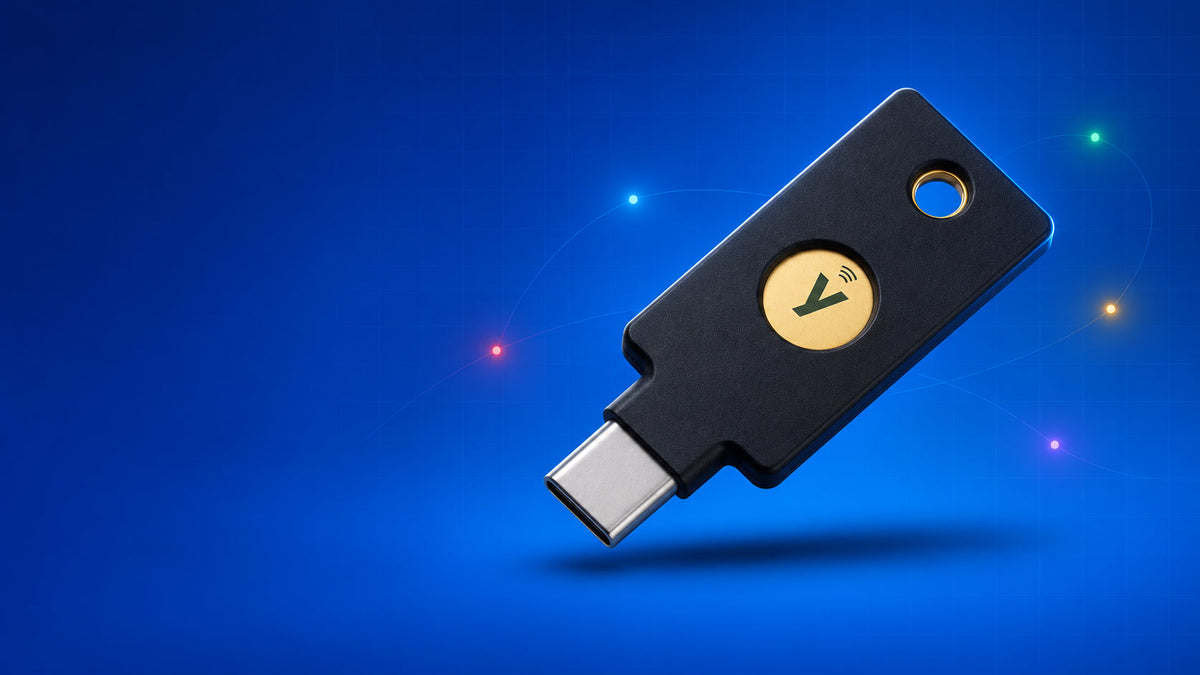
A YubiKey can protect far more than one account. The same physical key can be registered with Google, Microsoft, Apple Account, Facebook, GitHub and hundreds of other compatible services. What changes from service to service is how the key is used: as a second factor after a password, as a FIDO2 passkey for passwordless sign-in, or as part of an organization’s managed identity system.
Key takeaways
- Google, Microsoft and GitHub can use a compatible YubiKey as a FIDO2 passkey; Facebook commonly uses it as phishing-resistant two-factor authentication.
- Apple Account, previously called Apple ID, requires at least two FIDO-certified security keys and allows up to six.
- For the five services in this guide, a lower-cost Security Key Series model is usually enough because they primarily rely on FIDO2/WebAuthn.
- Choose the connector before the feature set: USB-C plus NFC is the most flexible combination for current phones, tablets and computers.
- Register a backup key and save recovery options before carrying the main key every day.
What does YubiKey work with?
YubiKey works with services that support open authentication standards such as FIDO2, WebAuthn and FIDO U2F. Yubico’s compatibility catalog covers more than 1,000 applications and services, including password managers, cloud platforms, developer tools, social networks and enterprise identity systems.
The important distinction is that a YubiKey does not store your Google password, Facebook password or GitHub account. During registration, the service creates a unique public-key credential for that account. The private credential remains protected by the key. A fake sign-in page cannot simply ask you to type that credential, which is why FIDO authentication is significantly more resistant to phishing than SMS or one-time codes.
One YubiKey can be registered with many services. The credentials are separated by service, so registering the same physical key with Google and GitHub does not allow either service to see the other account.
Google, Microsoft, Apple, Facebook and GitHub at a glance
| Service | How YubiKey is used | What to prepare | Important limitation |
|---|---|---|---|
| 2-Step Verification or a FIDO2 passkey; also suitable for Advanced Protection | A FIDO-compatible key and a current browser | A passkey requires FIDO2 support; keep a backup sign-in method or key | |
| Microsoft | Passkey for a personal Microsoft account or work/school account through Microsoft Entra ID | Set a PIN on the key when prompted | An organization administrator may need to enable FIDO2 passkeys |
| Apple Account | Physical second factor replacing the normal six-digit verification code for protected sign-ins | At least two FIDO-certified keys | All signed-in devices must meet Apple’s software requirements; losing every trusted device and key can lock you out |
| Security key for two-factor authentication | Add it in Accounts Center under Password and security | Keep a second key or another recovery method | |
| GitHub | Security key after password, or a FIDO2 passkey for a one-step sign-in | Enable 2FA and store recovery codes safely | Account sign-in credentials are separate from SSH or GPG signing keys |
Using YubiKey with Google
A Google Account can register a YubiKey as a security key for 2-Step Verification. After entering the password, the user inserts the key or taps it over NFC and confirms physical presence. A FIDO2-capable model can also hold a passkey, allowing passwordless sign-in when the device and browser support it.
For journalists, executives, administrators and people at higher risk of targeted phishing, Google’s Advanced Protection Program is designed around stronger authentication controls. Registering a daily key plus a backup key is safer than depending on one device.
Typical setup path
- Open Google Account settings and select Security.
- Open 2-Step Verification or Passkeys and security keys.
- Choose to add a security key or create a passkey on a hardware security key.
- Insert the USB key or tap it by NFC, create a PIN if requested, then name the key clearly.
- Repeat with a backup key and verify that recovery information is current.
Using YubiKey with Microsoft
For a personal Microsoft account, a FIDO2 YubiKey can be added under advanced security options as a passkey or security key. It can protect access to services tied to the account, including Outlook and other Microsoft consumer services.
Work and school accounts are managed through Microsoft Entra ID. In that environment, the YubiKey acts as a device-bound passkey: the private key stays on the physical authenticator. Employees usually register it through the Security info page, but the organization must first allow the FIDO2 authentication method. This makes YubiKey especially relevant for administrators, finance teams and other high-impact roles.
Using YubiKey with Apple ID or Apple Account
Apple now calls Apple ID an Apple Account. Security Keys for Apple Account is an optional advanced protection feature. Once enabled, a physical key replaces the normal six-digit verification code for sensitive sign-ins, such as signing in on a new device or on the web.
Apple requires at least two FIDO-certified security keys and allows up to six. Compatible software is required on devices signed in to the account: iOS 16.3, iPadOS 16.3 and macOS Ventura 13.2 or later. The key’s connector also has to match the devices you actually use. USB-C and NFC are the most practical choice for current Apple devices; older Lightning equipment may require a Lightning-compatible model or adapter, depending on the exact device and workflow.
Using YubiKey with Facebook
Facebook can use a YubiKey as a physical two-factor authentication method. After the password is accepted, the account asks for the registered key. Because the browser verifies the real Facebook domain through WebAuthn, a look-alike phishing site cannot reuse the authentication response.
Setup is normally found in Accounts Center → Password and security → Two-factor authentication → Security key. Facebook supports registering more than one compatible key, which makes a primary-and-backup arrangement practical across desktop and mobile devices.
Using YubiKey with GitHub
GitHub supports both security keys and passkeys, but the two modes are not identical. A security key registered as a 2FA method is used after the password. A FIDO2 passkey can satisfy both the password and second-factor requirements in one secure sign-in.
GitHub currently asks users to configure an initial 2FA method before adding a traditional security key. Recovery codes should be downloaded and kept offline. A compatible FIDO2 hardware key can also be registered as a non-synced passkey, which is useful for developers who do not want that credential copied through a cloud passkey provider.
Which YubiKey should you choose?
For Google, Microsoft, Apple Account, Facebook and GitHub, the deciding factor is usually the connector—not the number of advanced protocols.
| Model | Best for | Why choose it |
|---|---|---|
| Security Key C NFC | Most people using modern phones and computers | USB-C + NFC, focused on FIDO2/U2F, and usually the most economical route for the five services in this guide |
| Security Key NFC | Computers with USB-A plus NFC phones | Same FIDO-focused purpose with a USB-A connector |
| YubiKey 5C NFC | Users who also need authenticator codes, PIV smart card, OpenPGP or enterprise protocols | USB-C + NFC with multi-protocol support beyond FIDO |
| YubiKey 5 NFC | USB-A environments that need multi-protocol features | Broad YubiKey 5 capabilities with NFC |
| YubiKey Bio | Desktop users who want fingerprint verification | FIDO authentication with on-key biometric verification; choose USB-A or USB-C carefully |
A safer setup checklist
- Confirm the connector used by every important device before ordering.
- Register two keys whenever the service permits it; Apple Account requires at least two.
- Name each key clearly, such as “Daily USB-C” and “Backup at home”.
- Store the backup separately from the main key and your laptop bag.
- Save recovery codes offline and update recovery email and phone details.
- Test both keys in a private browser window before relying on them.
- Remove a lost key from every registered account immediately.
Frequently asked questions
Can one YubiKey be used for several accounts?
Yes. One key can be registered with many compatible services and with multiple accounts. Each service creates a separate credential.
Do I need a YubiKey 5 Series model for these five services?
Usually not. If the goal is Google, Microsoft, Apple Account, Facebook and GitHub sign-in, the FIDO-only Security Key Series is normally sufficient. Choose YubiKey 5 Series when you also need OTP, PIV, OpenPGP or other enterprise functions.
Should I buy one key or two?
Two is the safer plan. Apple requires at least two. Other services may allow a different recovery method, but a second physical key reduces the risk of lockout.
Does YubiKey protect an account after it has already been compromised?
It prevents many future phishing-based sign-ins, but it does not automatically remove an attacker’s active sessions or connected apps. Change the password, review sessions, revoke unknown access and then add the key.
Which model works best with iPhone and Android?
A USB-C + NFC model is the most flexible for current devices. NFC is convenient on compatible phones, while USB-C covers newer computers, tablets and phones.
Need help choosing?
Tell SIAMBC which phone, tablet, computer and accounts you use. We can help match the connector and feature set before you order.
Browse all YubiKey models
Share:
Optimizely breach caused Ledger.com to serve malicious code, but Ledger devices remained secure