



Quick answer
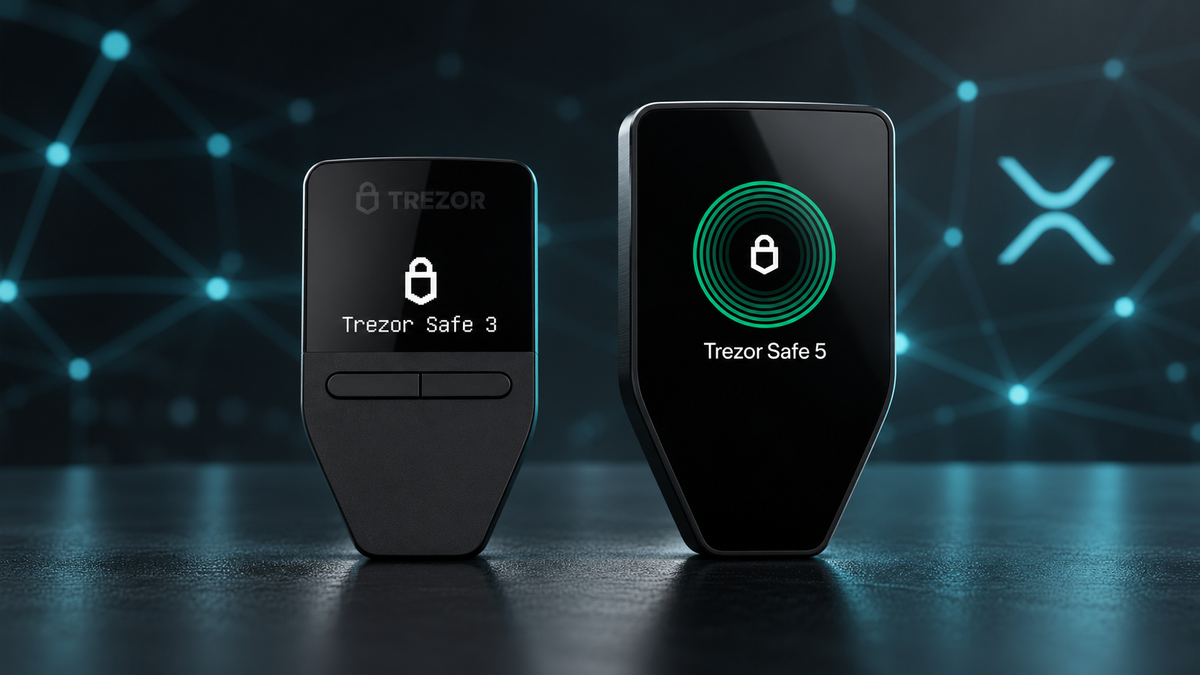
- XRP works with Trezor Safe 3, Safe 5, Safe 7 and Model T. It is not supported by Model One.
- XRP accounts can be managed natively in Trezor Suite.
- For a standard withdrawal, choose the XRP, XRP Ledger or Ripple network shown by the exchange.
- A personal Trezor address normally does not need a Destination Tag. Exchange deposits often do.
Trezor can secure XRP, but compatibility depends on the device you own. The Safe family and Model T support XRP directly in Trezor Suite, while the original Model One does not. Once the model question is settled, the most important part is choosing the correct network and handling the Destination Tag correctly.
Which Trezor models support XRP?
| Device | XRP support | Wallet interface |
|---|---|---|
| Trezor Safe 3 | Yes | Trezor Suite |
| Trezor Safe 5 | Yes | Trezor Suite |
| Trezor Safe 7 | Yes | Trezor Suite |
| Trezor Model T | Yes | Trezor Suite |
| Trezor Model One | No | XRP accounts cannot be added |
Safe devices must be running Universal firmware. Bitcoin-only firmware intentionally excludes XRP and other non-Bitcoin assets.
Which XRP network should you choose?
For an ordinary XRP transfer into an account created in Trezor Suite, select the native network labelled XRP, XRP Ledger or sometimes Ripple. Exchanges use different labels, so confirm the network details rather than relying on the ticker alone.
Do not choose BNB Smart Chain or another token network simply because it offers a lower fee. An XRP-denominated token on another chain is not the same asset path as native XRP on the XRP Ledger. XRPL EVM also requires its own compatible address and workflow.
Before you withdraw
Match the network and address format, verify the address on the Trezor display, and send a small test amount before moving a larger balance.
How to receive XRP with Trezor
- Install the latest official release of Trezor Suite and update the device firmware.
- Enable XRP in coin settings and add an XRP account.
- Select Receive and reveal the full address.
- Compare the address in Suite with the address shown on the Trezor screen.
- Paste it into the exchange withdrawal form and select the native XRP Ledger network.
- Send a small test transaction and wait for it to arrive before transferring the rest.
The device display is your trusted confirmation point. Checking only the address shown on a computer is not enough if that computer has been compromised.
How to send XRP from Trezor to an exchange
- Open the exchange's XRP deposit page and copy both the Deposit Address and Destination Tag.
- Choose the XRP account in Trezor Suite and select Send.
- Enter the address, tag and amount in their respective fields.
- Verify the address and transaction details on the Trezor display.
- Use a small test deposit before sending a substantial amount.
What is a Destination Tag?
A Destination Tag is a numeric identifier used to route a payment when many customers share the same XRP deposit address. This is common at centralized exchanges.
- Receiving into your Trezor: a tag is normally unnecessary because the address belongs to your wallet.
- Depositing to an exchange: include the exact tag supplied by the exchange.
- Sending to another self-custody wallet: use a tag only when the recipient explicitly requires one.
If a required tag is omitted, the transaction can still succeed on-chain while the exchange fails to credit your account automatically. Recovery may require a support case, transaction evidence and additional time.
Why can't the entire XRP balance be sent?
The XRP Ledger uses a Base Reserve to discourage unnecessary account creation. Trezor's current guidance states that a newly funded address must hold at least 1 XRP, which remains reserved while the account is active. Network rules can change, so check the current reserve before planning a full withdrawal.
A small remaining balance is therefore not an extra Trezor fee and does not indicate a hardware problem.
Trezor options for XRP holders

Trezor
- Native XRP support in Trezor Suite
- CC EAL6+ Secure Element
- A practical first hardware wallet

Trezor
- Native XRP support
- Colour touchscreen for clearer verification
- Well suited to frequent transactions

Trezor
- Supports XRP in Trezor Suite
- Touchscreen and flexible connectivity
- The flagship choice for mobile-focused users
Frequently asked questions
Can Trezor Model One hold XRP?
No. Model One does not support XRP. Use Safe 3, Safe 5, Safe 7 or Model T instead.
Do I need a Destination Tag when receiving XRP?
Not for a normal personal Trezor address. If an exchange forces the field during withdrawal, follow that platform's instructions before proceeding.
Why is XRP missing from Trezor Suite?
Confirm that the model is compatible, Universal firmware is installed, Suite is current and XRP has been enabled in coin settings.
Can a Trezor backup recover XRP?
Yes, when the XRP account belongs to that wallet. Enter the backup only on a trusted hardware wallet, never into a website, form or support chat.
Conclusion
Trezor supports native XRP on Safe 3, Safe 5, Safe 7 and Model T. Model One is the exception. For routine transfers, choose the XRP Ledger network, confirm every address on the device and remember the practical rule: receiving into your own Trezor usually needs no tag, while depositing to an exchange often does.
Written by Bank · Updated 12 October 2026
Share:
Ledger Hack? $86M Wallet Theft Investigation Explained
Ledger Confirms Hardware Implant in CryptoBilis Device: What Users Should Know