

Written in March 2018 for Ledger firmware 1.4. Every screenshot in the original was hosted on Ledger's old support site and those images no longer exist, so the illustrations are missing here. The firmware and the Ledger Manager software described have both long since been replaced by Ledger Live. Kept as a record.
Many people will know by now that a few days ago Ledger released firmware 1.4 for the Ledger Nano S, which Ledger recommends users update to.
New features in 1.4
- Up to 18 apps can be installed, up from around 5 before
- The 24-word verification step now checks all 24 words, rather than only 2 or 3, which helps guard against writing a word down incorrectly
- Improved device speed
- Improved device security
What to know before updating
- Check your current firmware under Settings > Device > Firmware
- The update can take as long as 15 minutes or more. Avoid updating if you need to move funds immediately
- The update clears all app data but keeps your seed and your accounts. (We still suggest having your 24 words to hand.)
How to update
If you hit any problem during the update, see "Problems that can occur during the update" below.
1. Open Ledger Manager on your computer and connect your Ledger. (If you do not have it yet, download Ledger Manager first.)
2. Enter your PIN on the Ledger and wait.
3. Click Firmwares, and next to Firmware Version 1.4.1 click the green downward arrow, then press Install.
- The device will show "Allow Ledger manager?" — press the right button on the device.
- The computer screen will show "Installing firmware... Please wait, this may take a few moments".
- If the screen shows "Unable to install OS updater", remove at least one app and start again. (You may need to remove three or four.)
4. Wait until "Update firmware" appears, then:
- Press the right button.
- Check that the version is 1.4.1 and press the right button.
- On this screen, check that the numbers and letters match what appears on the computer screen, then press the right button.
- Wait until the device asks for your PIN, and enter it as normal.
5. The device will show "MCU firmware is outdated" and the computer will show "To begin, connect your Ledger Wallet. If asked, enter your PIN code to unlock your device".
- Unplug the Ledger's USB cable.
- Hold down the left button and, while holding it, reconnect the device to the computer.
- The device screen will show "Bootloader" and the computer will show "Restoring MCU... Your device is being updated. Do not disconnect".
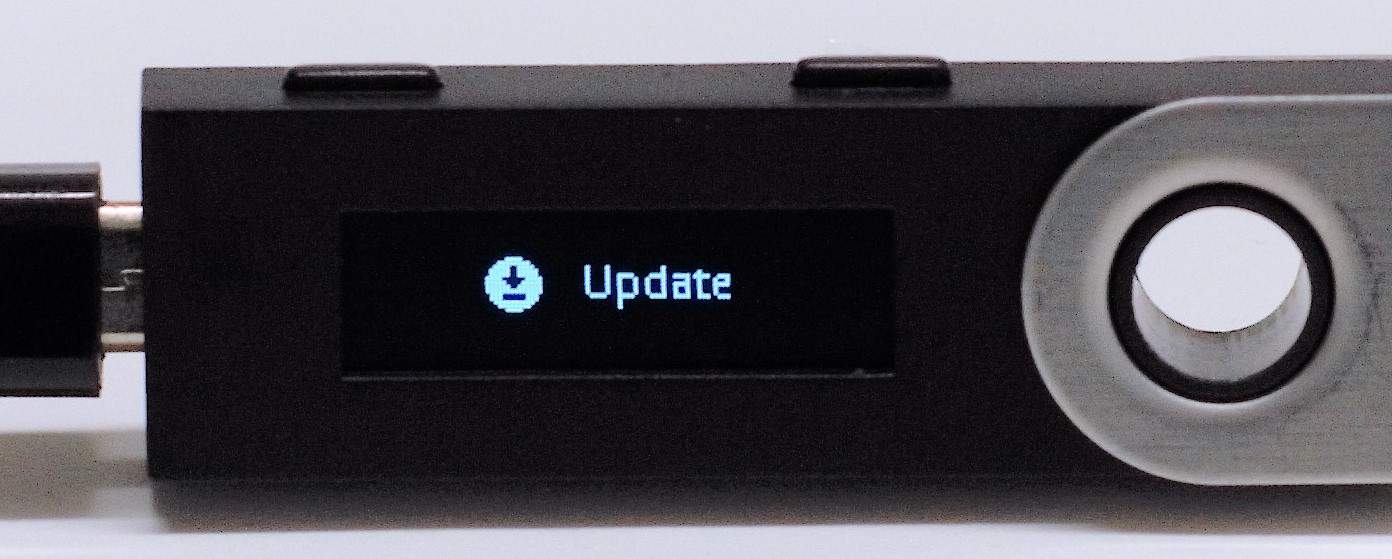
- The device will show "Update" and "Processing", while the computer shows "Installing firmware, please wait, this might take a few moments".
- Wait until the device shows the PIN screen, then enter your PIN as normal.
6. Check that the update succeeded:
- On the Ledger, go to Settings > Device > Firmware.
- Check whether the Secure Element reads 1.4.1.
- Then press the right button and check whether the MCU reads 1.5.
7. The update is complete. The next step is installing your apps as normal.
- We suggest always keeping the Bitcoin app installed, because a number of currencies need to work through it.
Problems that can occur during the update
- At step 5, if it sits on "Update" for a long time and the computer does not show "Installing firmware" but instead shows "To begin, connect your Ledger Wallet": wait 5 minutes for "Installing firmware" to appear. If that does not work, close Ledger Manager, unplug the Ledger and start again from the beginning.
- At any step, if you unplug and reconnect the Ledger and the device shows only "Update" and no button does anything, go to Control Panel > Device Manager on Windows.
Share:
Trezor discontinues Chrome extension updates
What blockchain has to do with Bitcoin