

If your Ledger is lost or stolen, what you need is the 24 words you wrote down during the initial setup to recover the wallet.
There are two main ways to recover
- Recover onto a new Ledger, or onto any wallet that accepts a 24-word phrase
- Recover the public and private keys directly using a BIP39 tool
1. Recovering onto a new Ledger, or another wallet that accepts 24 words
- Connect the new Ledger and choose "Restore configuration?"
- Set a PIN for the new device
- At "3. Enter your recovery phrase", press both buttons and choose "24 words"
- Enter the 24 words in order to recover
- When it succeeds the screen reads "Your device is now ready" — recovery is complete and the new Ledger can be used immediately
If you would rather not buy a new Ledger, you can recover into any software that accepts a 24-word phrase, for example:
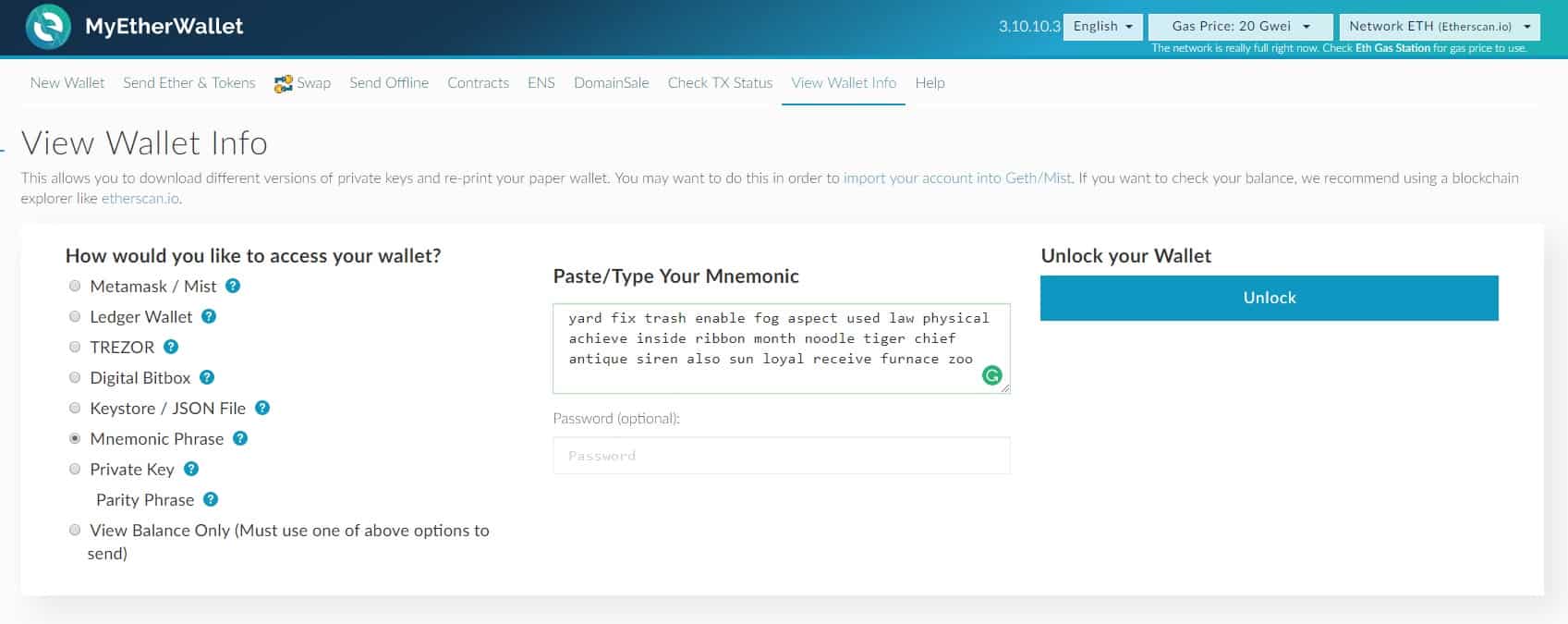
- MyEtherWallet.com (for ETH). Choose "Mnemonic Phrase", then type the 24 words in lower case with a single space after each one — for example: yard fix trash enable fog aspect used law physical achieve inside ribbon month noodle tiger chief antique siren also sun loyal receive furnace zoo
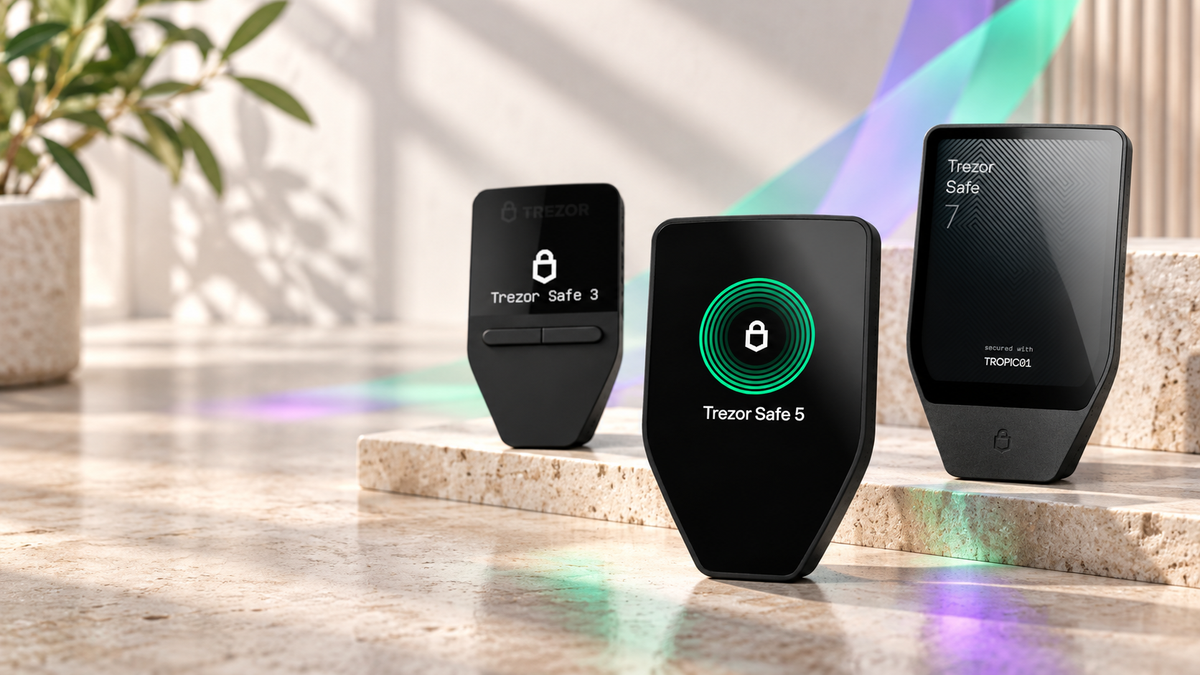
- Trezor's wallet software, for the currencies Trezor supports
- And a great many others
2. Recovering the public and private keys directly with a BIP39 tool
You can look up your public and private keys yourself using a free BIP39 tool, such as the standalone one Ledger publishes.
We do not recommend recovering this way. It is considerably more fiddly than method 1, and it is not suitable for new users.
Read before using: neither SIAMBC nor Ledger accepts liability for any loss arising from the use of this tool, whether the loss originates with you, with us or with Ledger. Read up thoroughly before using it.
- Open the BIP39 standalone tool.
- If you do not want to work offline, skip to the next step. To work offline, right-click the page and use "Save as" to save it to your computer, then open the saved file.
- In the "BIP39 Mnemonic" field, type the 24 words in lower case with one space after each.
- Once all 24 words are entered, the page loads the data automatically.
- Scroll to "Derivation Path" and select "BIP44".
- In the External/Internal field, enter 0 to see normal addresses and 1 to see what are called change addresses.
- Scroll to "Derived Addresses" and you will see the address, public key and private key. The first row is the first address your Ledger used, the second row the second, and so on.
If you have further questions you can reach us at order@siambc.com.

Share:
How blockchain makes spending Bitcoin more secure
A note on tamper-proof seals