If you connect a Trezor and the computer cannot find it, follow these steps.

  • Download the Zadig USB drivers.
  • Install them on your machine.
  • Connect the Trezor to the computer while holding both buttons down, then release the two buttons afterwards.
  • Open Zadig, choose "Option" from the top menu, and select "List all devices".
  • For the device listed, choose "Unknown Device #1" or something close to it.
  • To the right of the green arrow, choose "libusb0 (v1.2.6.0)" from the options.
  • Click the option that says "Install Driver" or "Replace Driver".
  • Wait until it finishes, then close Zadig.
  • Unplug the Trezor and go to the wallet on the Trezor website.

That is all it takes for the computer to find the Trezor.

If you have further questions you can contact SIAMBC at order@siambc.com.
Latest Stories

View all

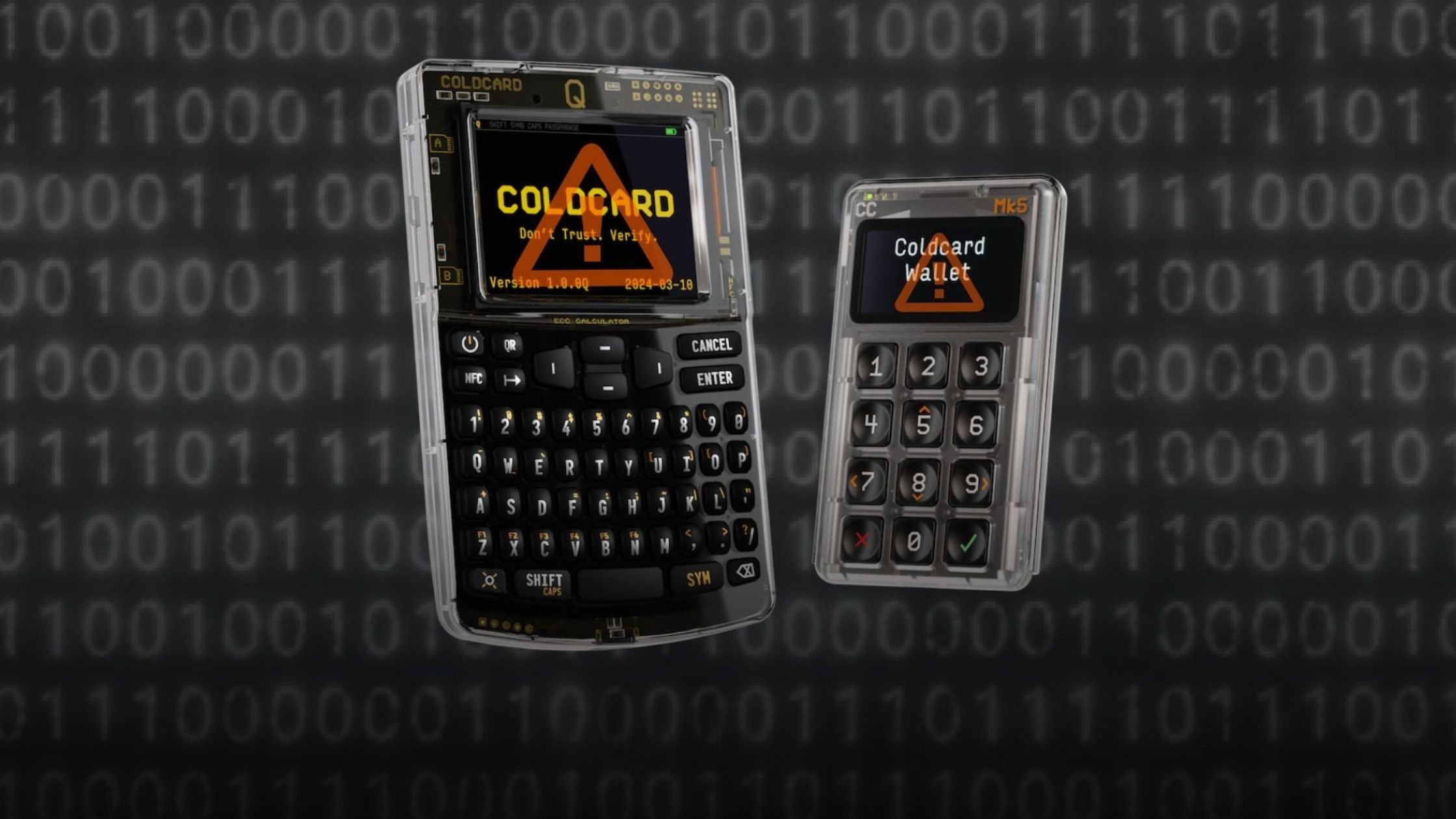
COLDCARD Q and Mk5 hardware wallets showing warning screens, over a binary code background

The COLDCARD hack explained: what happened, who is affected, and what to do

A 2021 firmware mistake left some COLDCARD seeds guessable, and attackers have taken over 1,800 BTC since 30 July 2026. How to tell whether your seed is affected, and exactly what to do.

Read moreabout The COLDCARD hack explained: what happened, who is affected, and what to do

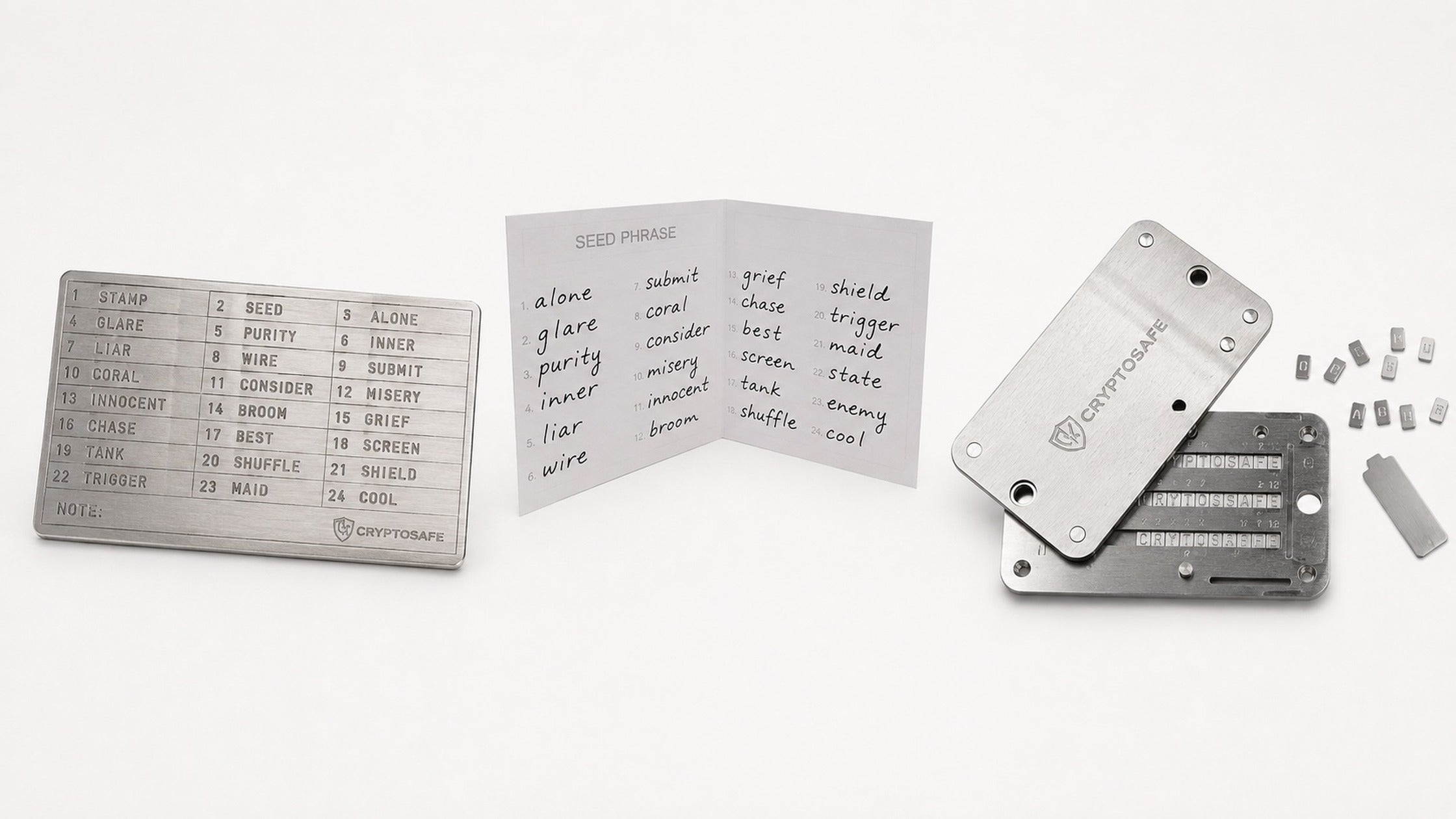
Where to Store Your Recovery Phrase in Thailand

Where to Store Your Recovery Phrase in Thailand

The paper card in the box is the weakest part of your setup — and Thailand is unusually hard on paper. What actually works, and where to keep it.

Read moreabout Where to Store Your Recovery Phrase in Thailand

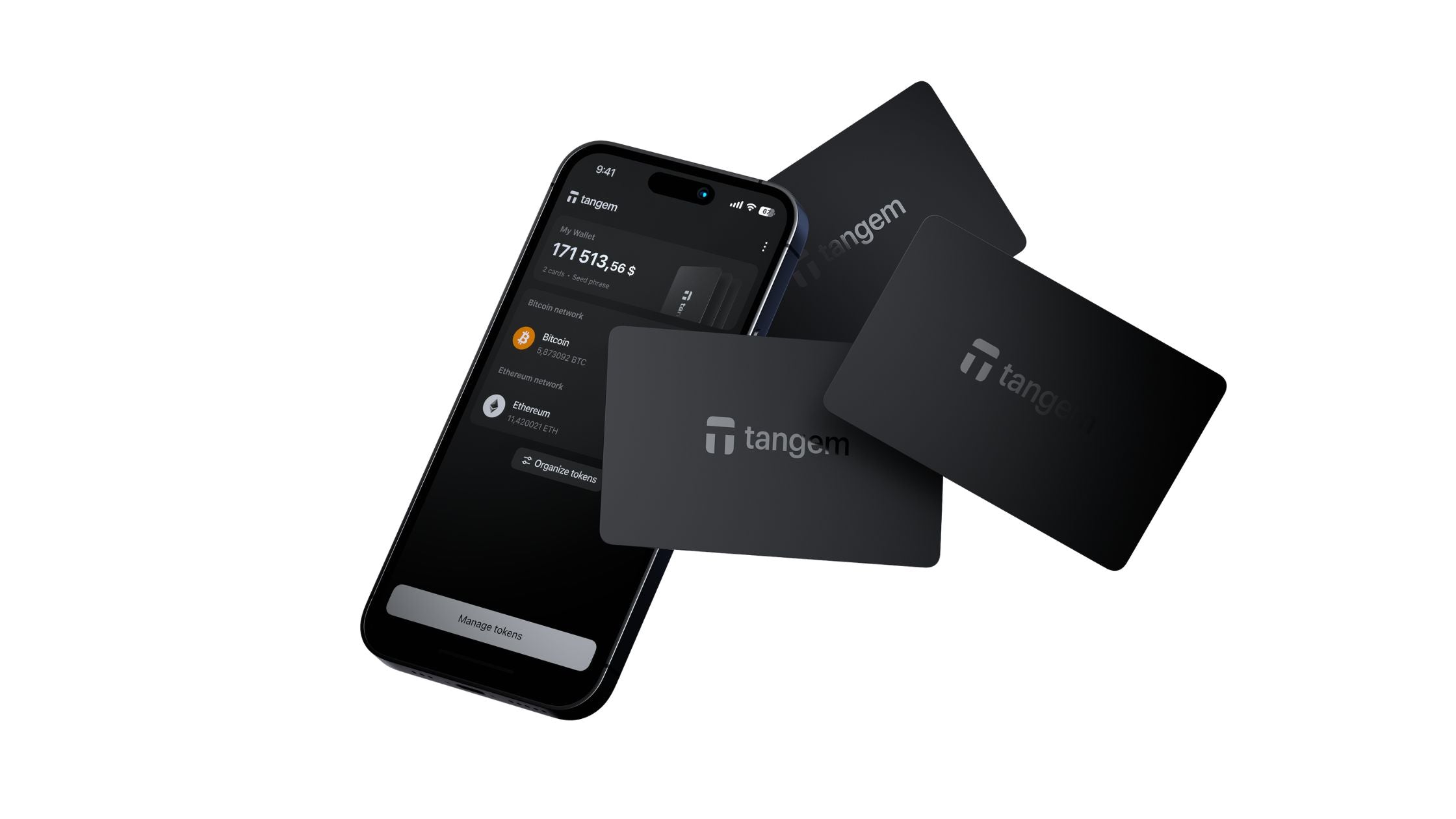
An iPhone running the Tangem app beside two Tangem hardware wallet cards

Which Hardware Wallets Work With iPhone (And Which Don't)

Of the hardware wallets we stock, some work with iPhone and some do not. Here is the full list, why iOS is fussier than Android, and how to choose.

Read moreabout Which Hardware Wallets Work With iPhone (And Which Don't)