

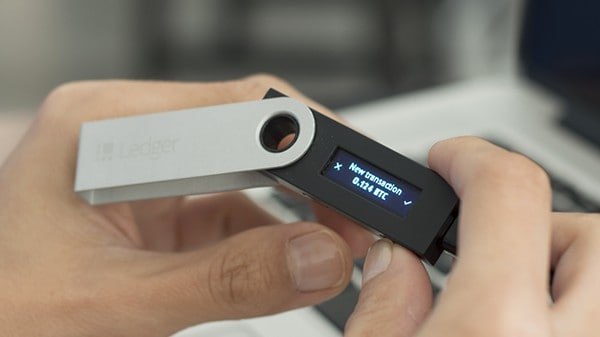
Your Ledger Nano S — the cryptocurrency wallet most people know and trust — has arrived. SIAMBC and Ledger both thank you for putting your confidence in it.
Keeping cryptocurrency on a hardware wallet is very different from depositing money at a bank, because you are the one looking after it. If it is lost, nobody can help you recover it. That includes SIAMBC, and it includes Ledger.
Setting up your hardware wallet correctly, and having a backup, therefore matters enormously.
This article covers the basics of using a Ledger Nano S, and why writing down those 24 English words is so important.
Getting started: four main steps
- Connecting the Ledger Nano S to your computer, and basic use
- Choosing a PIN for the Ledger Nano S
- Writing down the 24 English words for your backup (this is the most important step — read it carefully)
- Installing the software to use the Ledger Nano S on your computer
1. Connecting the Ledger Nano S, and basic use
- Inside the box you will find: the Ledger Nano S; a USB cable to connect it to your computer; and a card for writing down 24 English words, used in step 3.
- Connect the Ledger Nano S to your computer through a USB port. (A power bank or a phone charger works too.)
- For a computer without a USB-A port, such as a MacBook, use an adapter or Ledger's own on-the-go cable.
- The Ledger Nano S has only two buttons, on the top left and right, to keep it simple.
- Pressing one button scrolls through numbers, letters and functions.
- Pressing both buttons together confirms the number, letter or function you are on.
- Once it connects successfully, the blue screen lights up and shows "Welcome".
- At "Press both buttons to begin", press both buttons.
- At "Configure as new device?", choose the tick by pressing the right button.
- The Ledger Nano S then begins its initial setup and asks you to set a PIN.
2. Choosing a PIN
- To set the PIN, press the left or right button to scroll to the digit you want, then press both buttons to confirm it.
- At "1. Choose a PIN code", press both buttons.
- At "PIN code", set whatever PIN you want — it can be anywhere from 4 to 8 digits. When you are happy with it, move to the tick and press both buttons to confirm.
- At "2. Confirm your PIN code", press both buttons.
- At the second "PIN code" screen, enter the same PIN again to confirm it.
- This PIN protects your cryptocurrency if someone gets hold of your Ledger Nano S — much like the passcode on a smartphone. Enter it wrong three times and the Ledger Nano S wipes everything on it. That is precisely why step 3 matters so much: those 24 words are what let you restore it.
3. Writing down the 24 English words (the most important step)
- Once the PIN is set, you move on to writing 24 English words onto the card that came in the box. These are what you will use to recover your Ledger Nano S if it is lost or destroyed.
- Our advice at SIAMBC is to keep the card and the Ledger Nano S well away from each other — so that a single unexpected event, a fire for instance, does not destroy both the device and the card at once.
- Write the 24 words in the exact order the Ledger Nano S shows them on screen.
- At "3. Write down your recovery phrase", press both buttons.
- Write each word onto the card in order — "Word #1 cream" means writing cream as word 1. We suggest avoiding pencil, or any ink that will not survive heat.
- These words are shown once and only once, during this first setup.
- After all 24 are written down, the Ledger Nano S asks you to confirm you copied them correctly. It does not check all 24 — and a single wrong word will leave you unable to recover the device — so check every letter of every word carefully.
- At "4. Confirm your recovery phrase", press both buttons.
- The Ledger Nano S asks you to pick out words you wrote down. If it shows "Select word #17", scroll with the left or right button to the word you recorded as number 17, and press both buttons.
- Once all 24 words are on the card, store it somewhere only you know about, out of anyone else's sight.
- That card is what recovers your Ledger Nano S.
- Nobody — SIAMBC and Ledger included — can recover your Ledger Nano S for you if you forget the PIN and do not have those 24 words.
- Keeping the card away from other people is critical: anyone holding those 24 words can reach everything on your Ledger Nano S and take your cryptocurrency, without ever needing the device itself.
- When the screen reads "Your device is now ready", it is ready to use.
4. Installing the software to manage the Ledger Nano S
- To use it on a computer, download Ledger Live from Ledger's own website.
- Install it and open it.
- At "Get started with your Ledger device", follow these:
- Use a device that's already initialized.
- "Did you choose your PIN code by yourself?" — if you followed every step above, press Yes. If you did not, check where the device came from and reset the PIN before using it.
- "Did you save your recovery phrases by yourself?" — again, if you followed our steps, press Yes.
- "Is your Ledger device genuine?" — press "Check now" and wait.
- On the optional password lock screen you can set a password for Ledger Live itself, or skip it.
- You arrive at the main screen. Press Open Manager.
- Press the right button on the Ledger.
- Then choose the coins you want to hold.
Four steps, and your Ledger Nano S and your computer are ready to use.
If you have any further questions, you can reach us at order@siambc.com.
Share:
How Bitcoin and blockchain relate to each other
Using a Ledger Nano S with Ethereum ERC20 tokens